Home › Admin & Manager Guides › Call Center for Supervisors
Call Center for Supervisors
As a Call Center Supervisor you get real-time queue analytics, live call monitoring, and control over your queues and agents. When you log in to the Portal as a supervisor, you land on the Call Center section.
The Call Center Dashboard
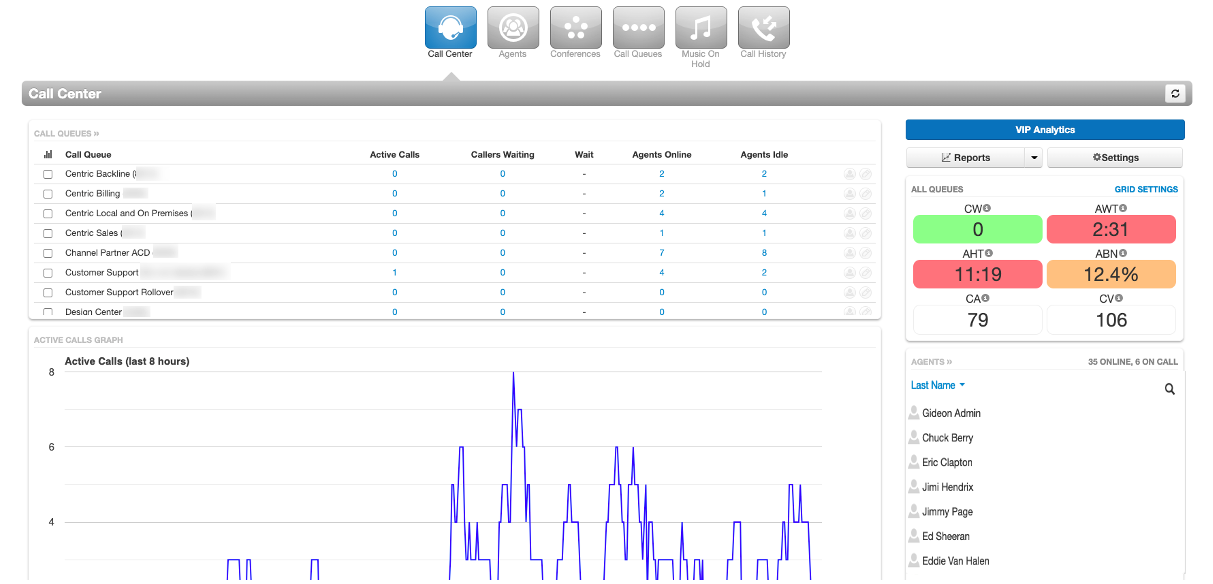
- Call Queues — real-time updates for each queue: active calls, callers waiting, wait time, agents online, agents idle.
- Active Calls Graph — a visual overview of your call flow for the last 8 hours.
- Active Calls — every call currently connected in the queue, with the number, who's on the call, and duration.
- Analytics — reporting and dashboard tools, including daily reports and real-time custom dashboards. See Analytics Boards.
ℹ Note: Analytics covers call center agents and queues only. For non-agent calls, use the Call History area of the portal.
Agent Call Monitoring
Monitor live queue calls for coaching and quality assurance:
- In the Active Calls card (bottom of the Home screen), find the call — the To column shows the agent's extension.
- Hover over the call entry and click the Listen button (speaker icon). The system builds the conference and rings your desk phone; an Audio Monitoring card appears.
- Answer your phone — you'll hear the conversation, and the participants are not alerted that you're listening.
- In the Audio Monitoring card choose:
- Join Call — speak with both the agent and the caller.
- Whisper to [Agent] — coach the agent without the caller hearing.
- When finished, hang up (or press End Call on your desk phone). The Audio Monitoring card closes automatically.
💡 Star code: managers can also monitor/barge with
088 + extension — see Feature Codes.Reports
Generate reports on the fly or on a schedule; display, print, or export them to CSV.
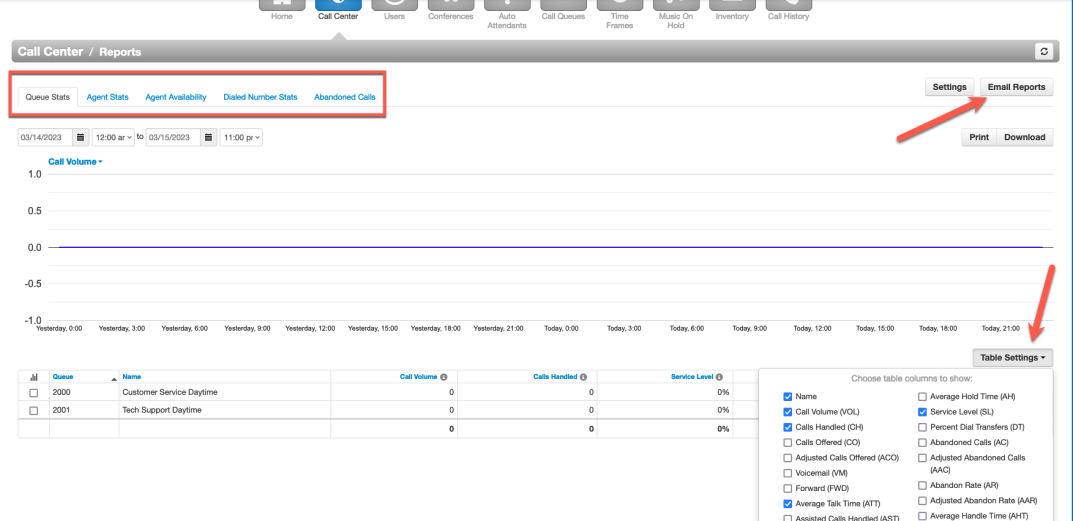
- Select Reports in Call Center.
- Pick a report tab: Queue Stats, Agent Stats, Agent Availability, Dialed Number Stats, or Abandoned Calls.
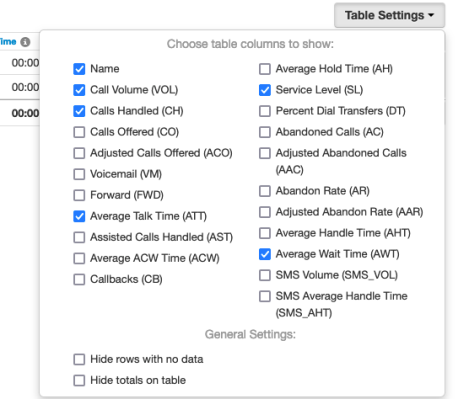
- Use Table Settings (right side) to include only the statistics that matter to you.
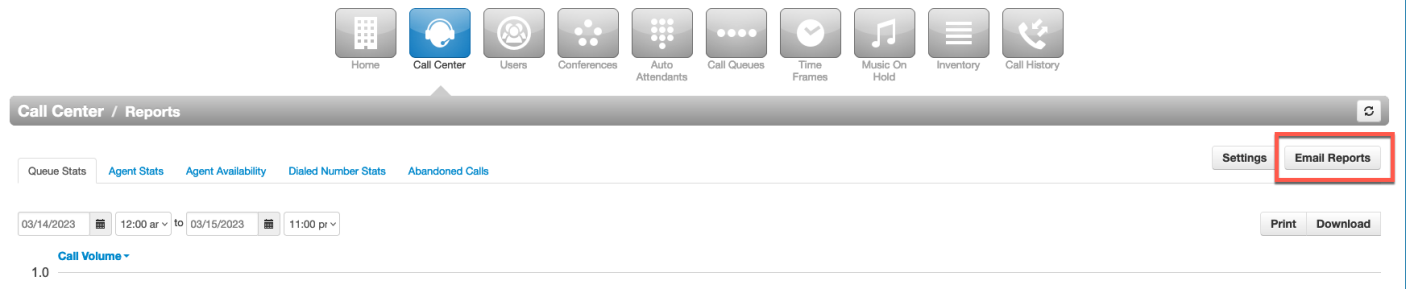
- To automate: select Email Reports, choose Type and Frequency (plus day/time), pick statistics in the Advanced tab (hold Ctrl/Shift to multi-select), add recipient emails, and Save.
Every statistic is defined in Call Center Reporting.
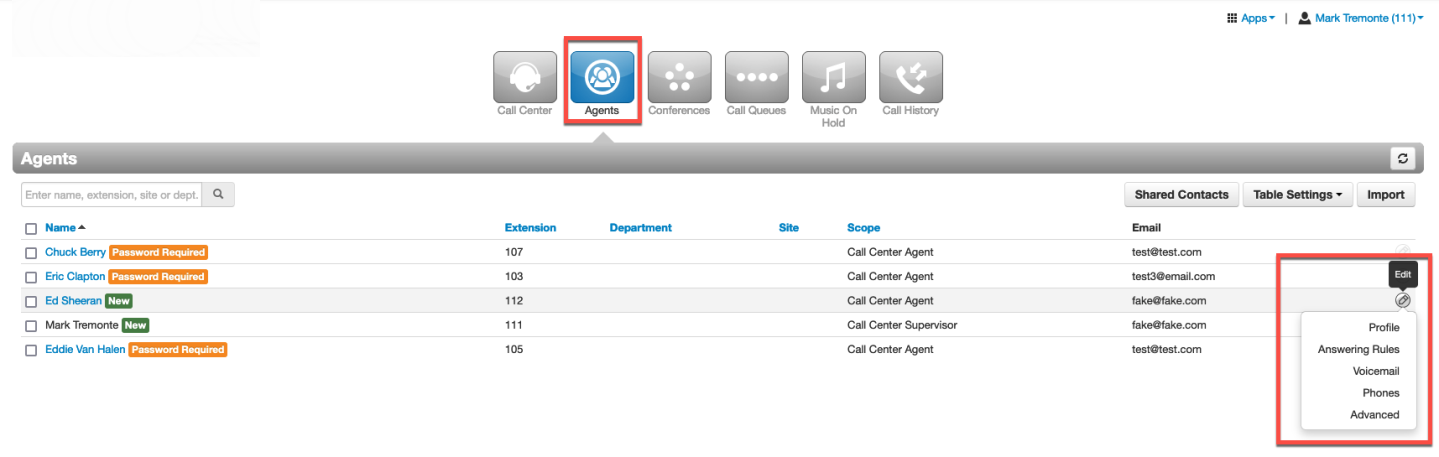
Agents, Conferences, Queues & More
- Agents — all agents and supervisors in your company. Edit an agent's profile, answering rules, voicemail, phones, and advanced settings (welcome email, force password reset, reset user). Details in Managing Users.
- Conferences — create and edit conference bridges. See Conference Bridges.
- Call Queues — create, modify and delete queues (Round Robin, Ring All, Linear Hunt, Linear Cascade, Call Park). See Call Queues.
- Music On Hold — hold music and messages for callers waiting in your queues. See Music on Hold.
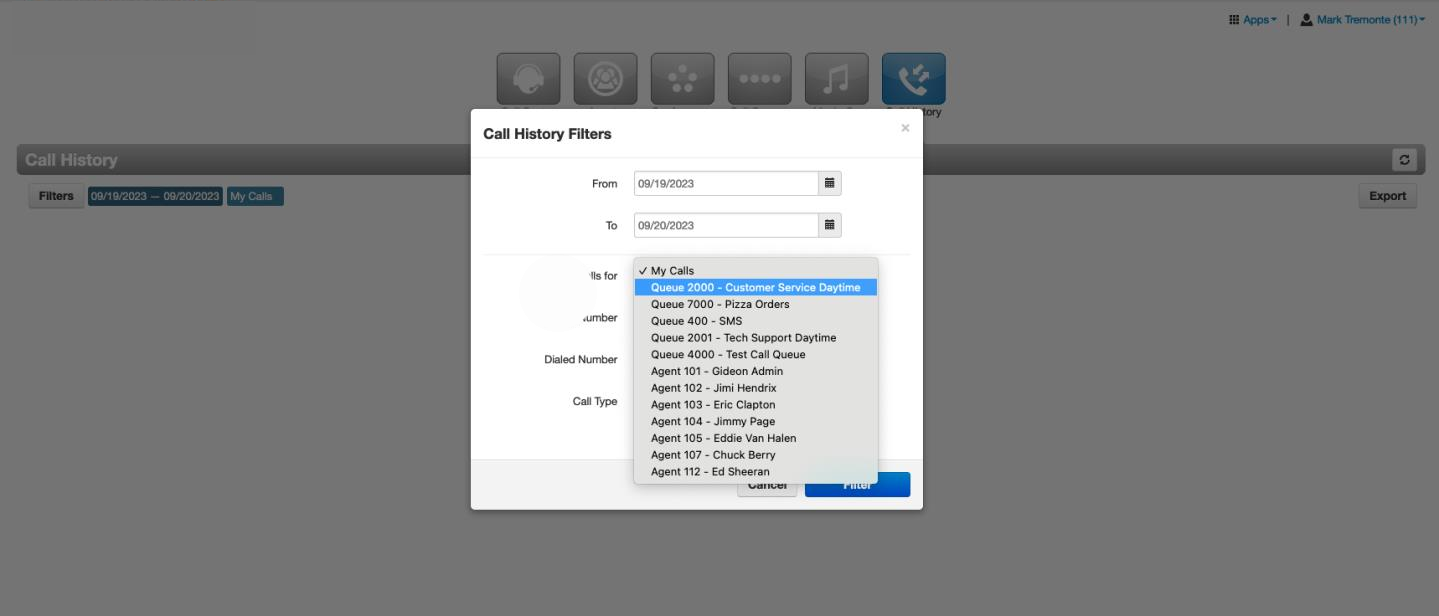
- Call History — filter all incoming/outgoing calls by agent or queue: click Call History, then Filters (Date, User, Queue, Caller Number, Dialed Number, Call Type), then Filter.
Related: Analytics · Call Center Reporting · Call Recording
↑ Back to top