Home › Admin & Manager Guides › Conference Bridges
Conference Bridges
Conference bridges are dial-in audio meeting rooms. Organizations can have more than one bridge, bridges can be combined with video meetings, and each bridge can have a "leader" with moderator controls.
Getting to Your Conference Bridge
A bridge is assigned an extension number by your Office Manager. Internal users call the extension; outside callers dial the bridge's direct number if one is assigned. If a leader is required to start, participants wait in a "waiting room" with hold music.
Types of Bridges
- Dedicated — for use by everyone in the company. All Office Managers can see it in their Conferences area, manage it, and moderate participants during a meeting.
- Owned — for a specific user, designated as the "owner". The owner sees the bridge in their portal and can moderate participants at meeting time.
Creating and Configuring a Bridge
Your bridges are normally created by PrimeCall at startup, but Office Managers can create, edit and delete them anytime.
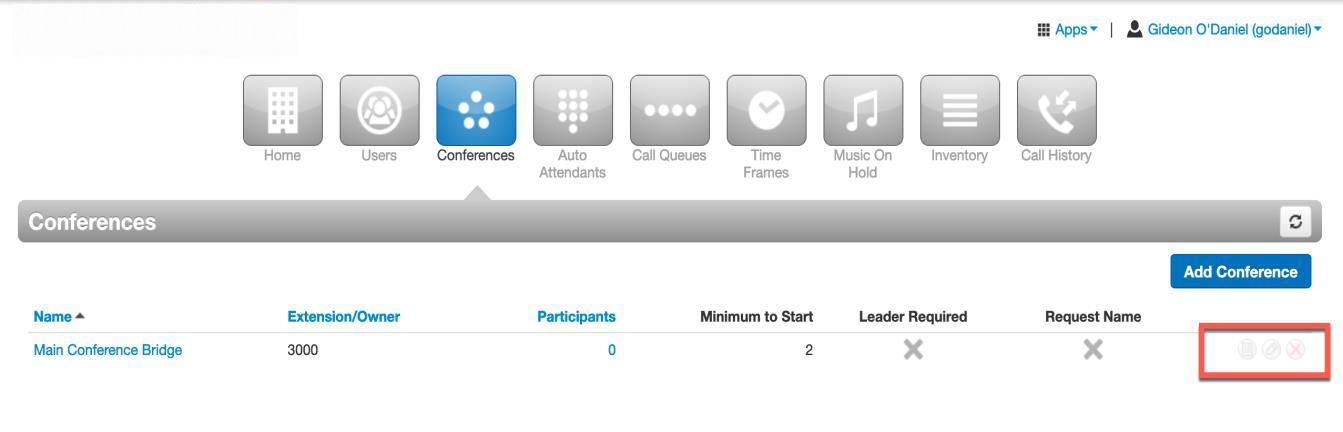
- Log in to the Portal as an Office Manager and select Conferences at the top of the page.
- Existing bridges are listed here. Select Add Conference (upper right) to create a new one.
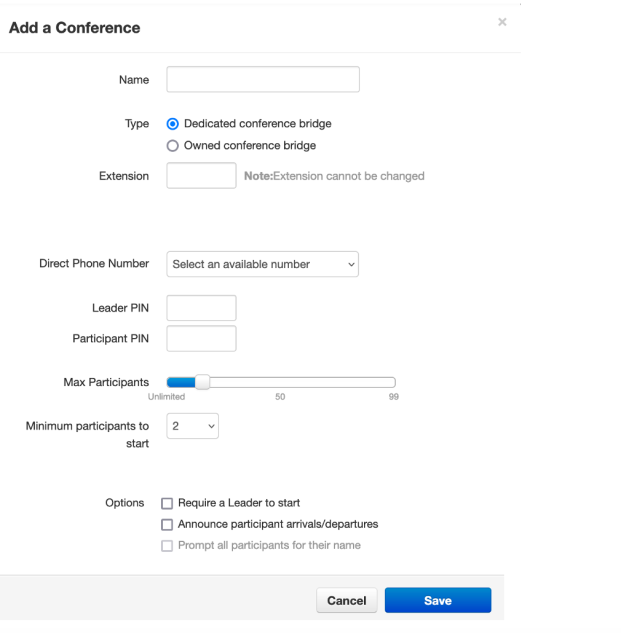
- Fill out the "Add New Conference Bridge" form:
- Name — distinguishes it from other bridges in your domain.
- Type — Dedicated or Owned (see above).
- Extension / Direct Dial — once chosen it cannot be changed without deleting the bridge.
- Direct Phone Number — any available direct numbers appear in the drop-down.
- Leader PIN — unique code that grants moderator control.
- Participant PIN — access code for participants (listen and speak only).
- Max Participants — up to 30. Need more? Contact PrimeCall Support.
- Minimum Participants to Start — callers hear hold music until this number is met.
- Options — Require a Leader to Start (hold everyone until the leader joins), Announce participants' arrival/departure, and Prompt all participants for their name before joining.
- Click Save. The bridge appears in the Conferences section, where Office Managers and owners can edit or delete it.
Using Your Conference Bridge
As a participant
- From a company phone, dial the bridge's extension; from any other phone, dial its direct number.
- Enter your participant PIN when prompted.
- Depending on the bridge settings, you'll join right away or wait on hold until the leader or another participant joins.
As a leader
- Dial the bridge extension (internal) or direct number (external).
- Enter your Leader PIN when prompted.
All Office Managers and owners function as bridge leaders.
Leader Star Codes
During a conference, leaders can moderate with these codes:
| Star code | Function |
|---|---|
6 | Toggle mute for yourself on/off |
71 | Recording on |
73 | Recording off |
74 | Decrease volume of others |
75 | Reset volume of others |
76 | Increase volume of others |
77 | Decrease conference volume |
78 | Reset conference volume |
79 | Increase conference volume |
91 | Announce list of active participants (if names are recorded) |
92 | Toggle announcements on/off |
93 | Disconnect all other participants |
94 | Toggle conference lock on/off |
95 | Announce the number of active participants |
96 | Mute all other participants |
97 | Unmute all other participants |
Related: PrimeCall Meeting (Video) · Inventory
↑ Back to top