Home › Admin & Manager Guides › PrimeCall Meeting
PrimeCall Meeting (Video)
PrimeCall Meeting delivers HD video for one-on-ones, team meetings and webinars — with team rooms, persistent chat and document sharing, presence integration, and one-click joining.
Access the Meeting Platform
From your web browser
- Go to login.primecall.com/video.
- Log in with your PrimeCall credentials, or join as a guest.
From the Portal
- Log in at login.primecall.com.
- Select Apps (upper right) → Meeting.

Start or Schedule a New Meeting
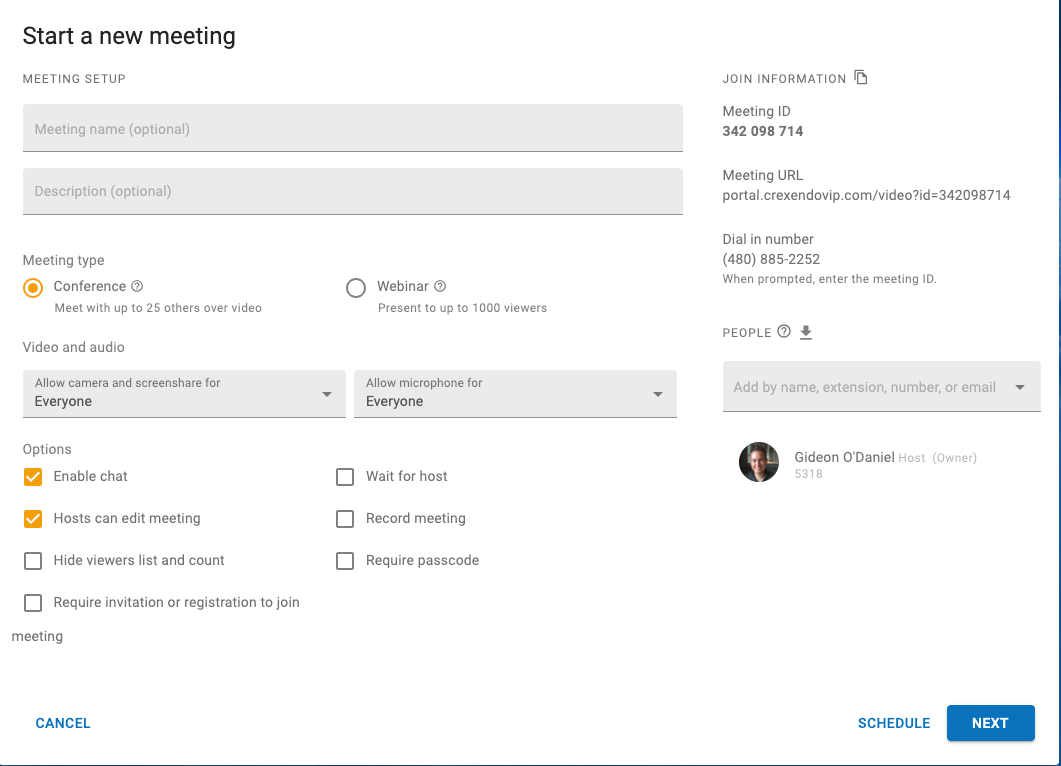
- From the main menu, select Start A New Meeting or Schedule a Meeting.
- Give the meeting a name and description for attendees.
- If scheduling, add the date, time, time zone, and whether it's one-time or recurring.
- Choose the meeting type:
- Conference — discussion and collaboration, up to 25 attendees.
- Webinar — presenting to large groups, up to 1000 attendees.
- Choose video and audio options — camera, screen sharing, and whether attendees can turn on their microphones.
- Choose meeting options:
- Enable chat during the meeting.
- Hosts can edit meeting settings.
- Hide viewers list and count.
- Require invitation or registration to join.
- Wait for host (keeps attendees in a waiting room).
- Record meeting.
- Require passcode to join.
- The Join Information shows the Meeting ID, URL, and direct dial-in number — click Copy to Clipboard to paste it into an email.
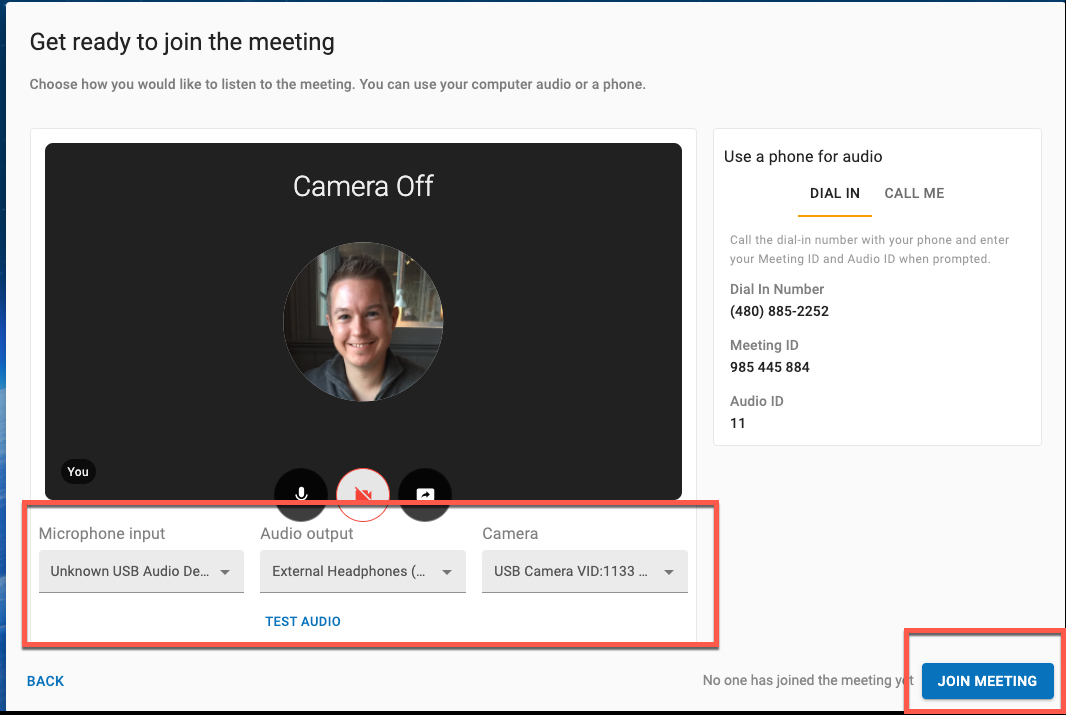
- Select Next, then check your microphone, audio output and camera. Use Test Audio to confirm sound.
- Prefer phone audio? Use the dial-in info, or select Call Me and enter your number to be called.
- Select Join Meeting — or Save if you scheduled a future meeting.

Join a Scheduled Meeting
- Log in to the Meeting platform and select Join A Meeting.
- Enter the Meeting ID and select Next.
- Check microphone, audio and camera (use Test Audio), or choose the dial-in / Call Me phone options.
- Select Join Meeting.
Create a Dedicated Meeting Room
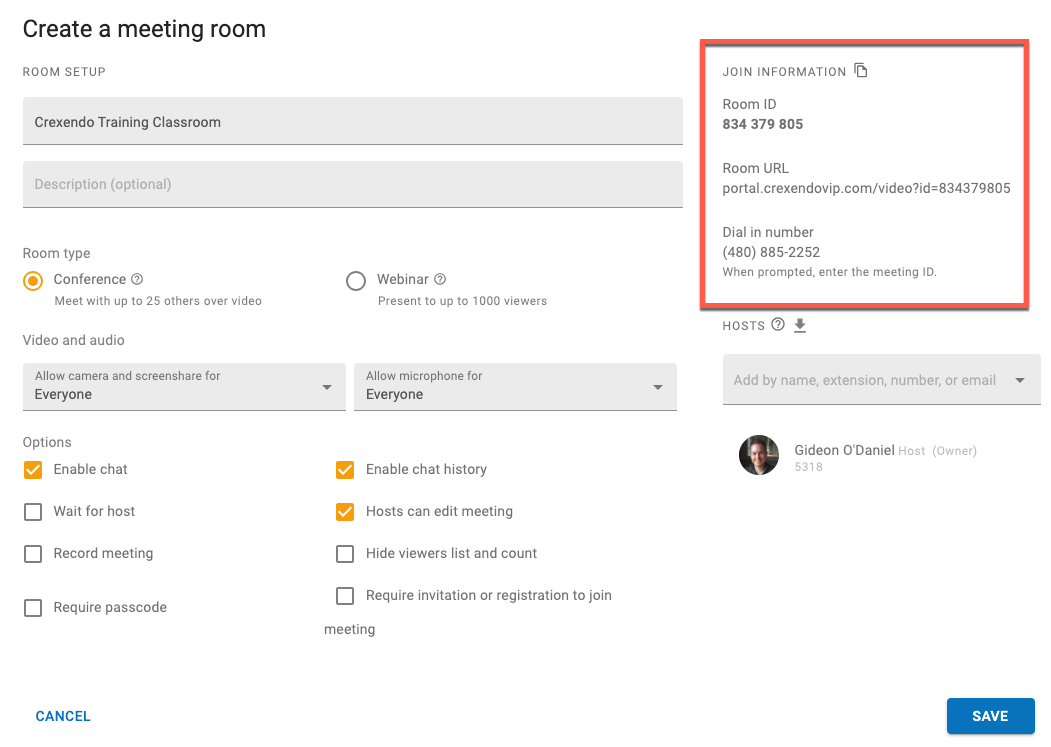
A meeting room keeps the same join information forever — perfect for recurring meetings.
- Log in to the platform and select Create A Meeting Room.
- Name the room and choose the options you want enabled.
- Select Save.
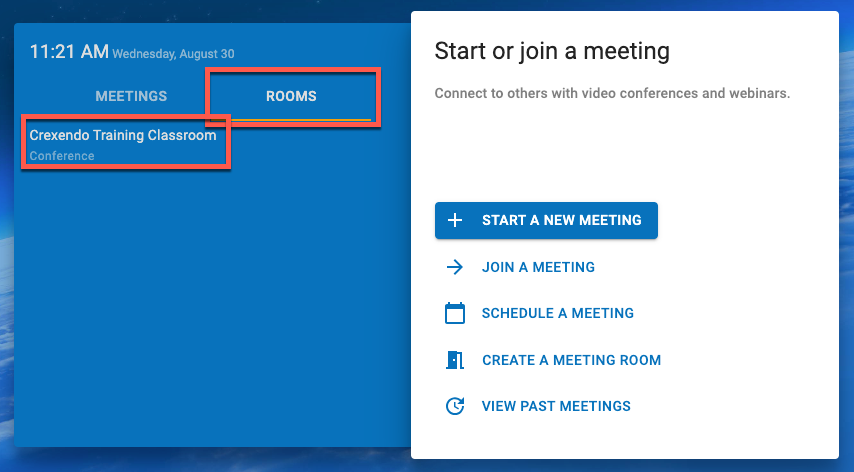
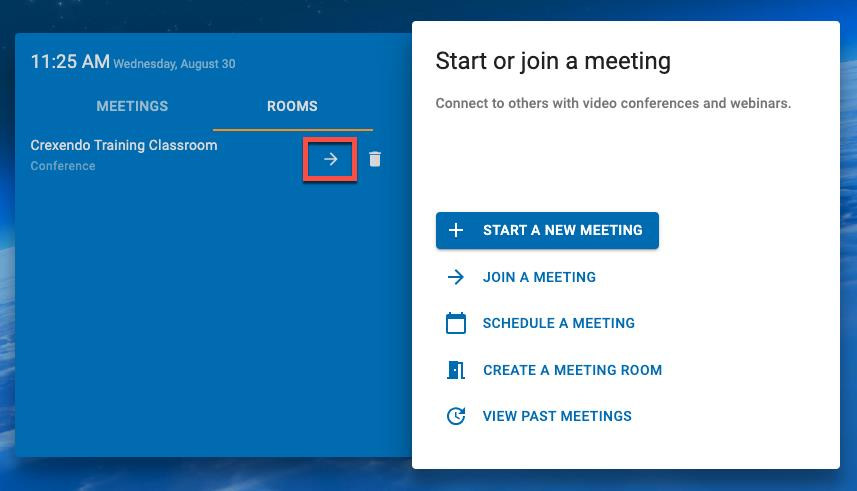
- Find your rooms under Rooms: the arrow icon enters the room; clicking the room's name opens its options page.
Related: Conference Bridges (audio) · Web Phone
↑ Back to top