Home › User Guides › Web Phone
Web Phone
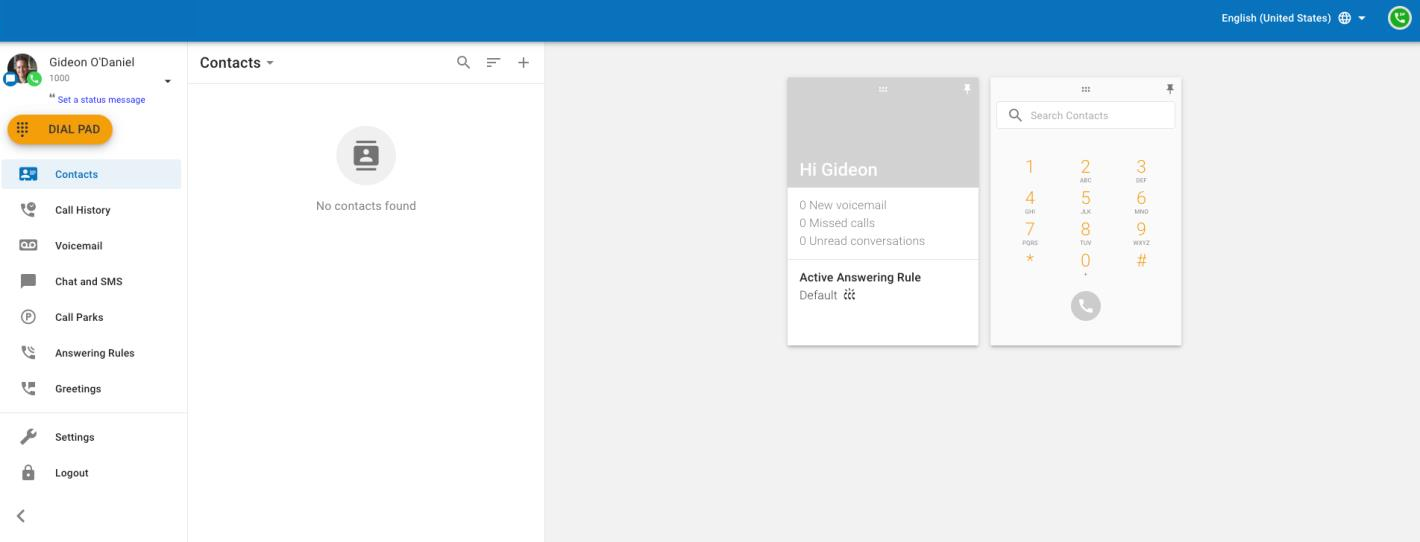
The Web Phone turns your computer into a "soft phone" with everything your desk phone does: calls on your extension, contacts, voicemail, chat/SMS, greetings, answering rules, and queue login/logout for call center agents.
Three Ways to Open It
1. Web browser
- Go to login.primecall.com/webphone.
- Enter your username (
extension@domain) and password. Recovery links are on the login page. - Click LOG IN.
2. From the Portal
- Log in to the Portal.
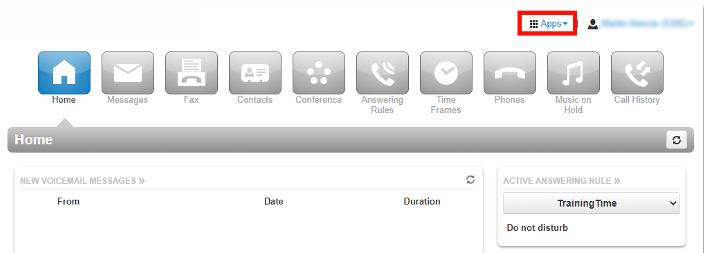
- Click the Apps drop-down (upper right) and select PrimeCall Webphone — it opens in a new tab.
3. Progressive Web App (PWA)
- Using Google Chrome, log in to the Web Phone.
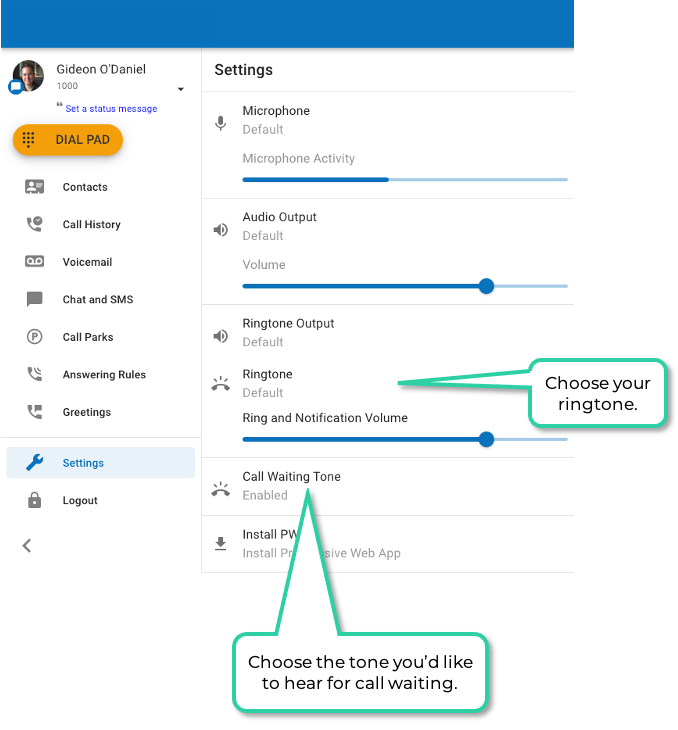
- Click Settings (left side) → Install PWA.
- Pin the app to your start menu, taskbar or dock. It then runs on its own — no tab or Portal login needed.
ℹ Note: the PWA can only be installed through Google Chrome.

Options During a Call
- Mute — caller can't hear you; you still hear them.
- Hold — click again to resume.
- Dial pad — for menu selections; Back returns to in-call options.
- Add Call — conference/three-way: Add call (first caller on hold), call the second person, then Merge Calls.
- Transfer — pick a contact or dial a number, then choose:
- Blind Transfer — completes immediately.
- Assisted Transfer — speak with the recipient first, then Complete Transfer (or Cancel Transfer to return to the caller).
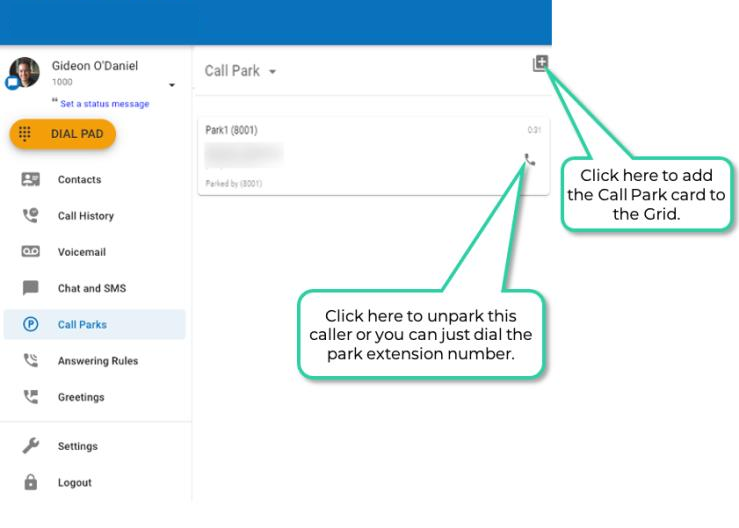
- Park Call — select Park call and pick an available park. To retrieve, open Call Parks in the navigation pane and select Answer.
- Switch Phone — send the call to another of your PrimeCall devices (desk phone or mobile app).
- Hide call — pins the active call to your workspace so you can multi-task.
- Start recording — records the call for an administrator to review; Stop Recording ends it.
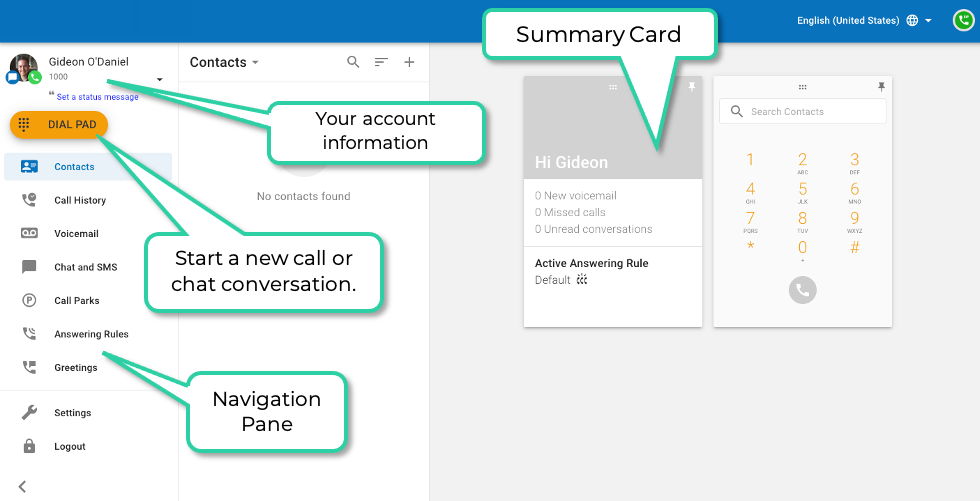
To place calls: use Contacts, Call History, a voicemail entry, or the red Dial Pad at the top of the navigation pane.
Areas of the Web Phone
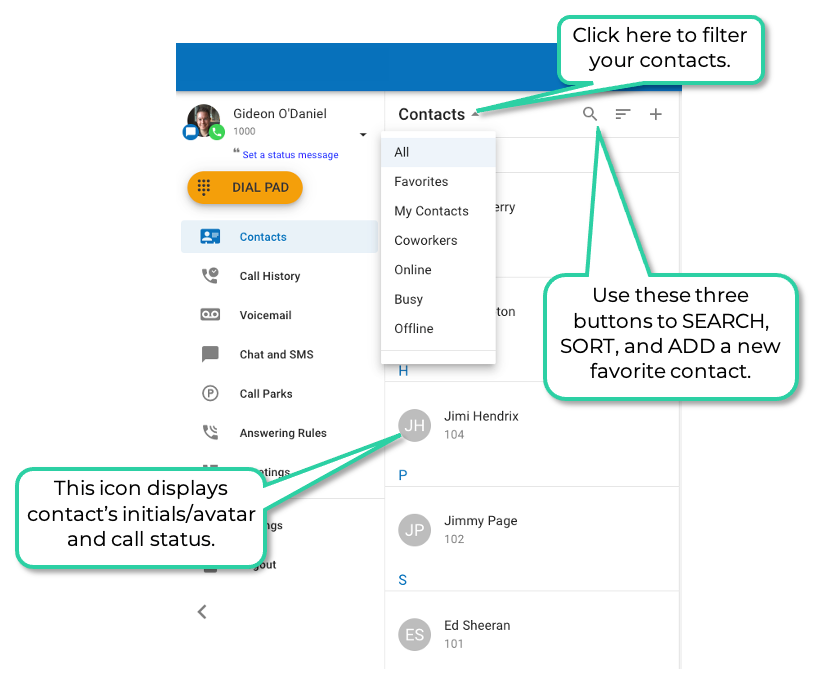
- Contacts — searchable, sortable company contacts; click any entry for details and to start a call.
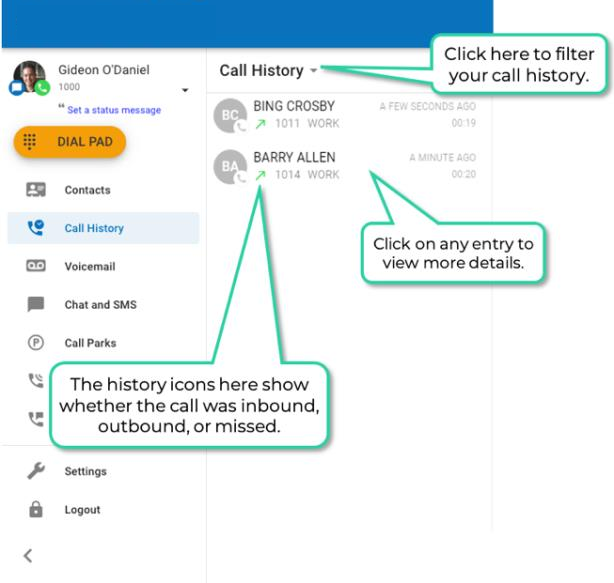
- Call History — your call activity with icons: blue arrow inbound, green outbound, red missed. Click an entry for related history or to add the person to Contacts.
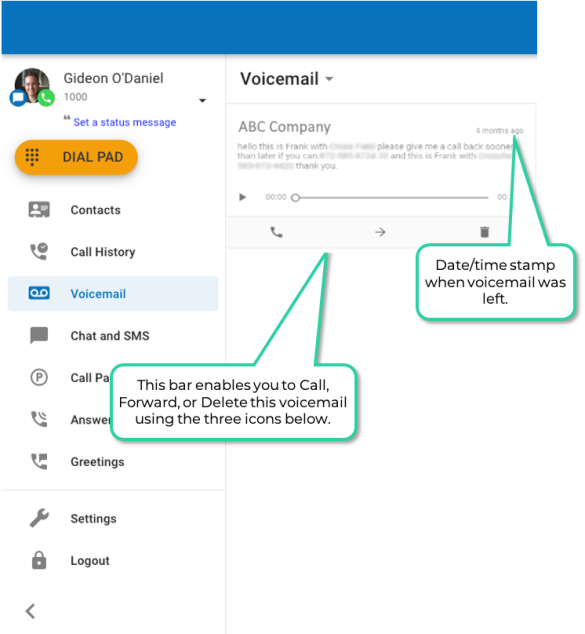
- Voicemail — new and saved voicemails with a Play button; transcriptions shown if enabled.
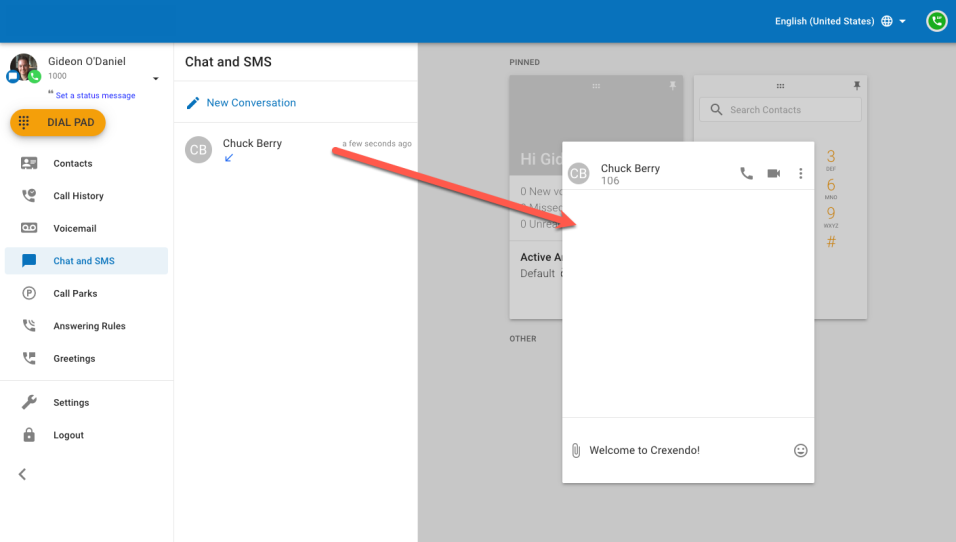
- Chat and SMS — conversations with colleagues (all web phone/mobile users) and, if SMS is enabled for your organization, outside numbers. Each conversation gets a card on the grid — closing/deleting a card doesn't delete the conversation. For a new SMS to an outside number: type the entire number, click the suggestion that pops up, then the check mark.
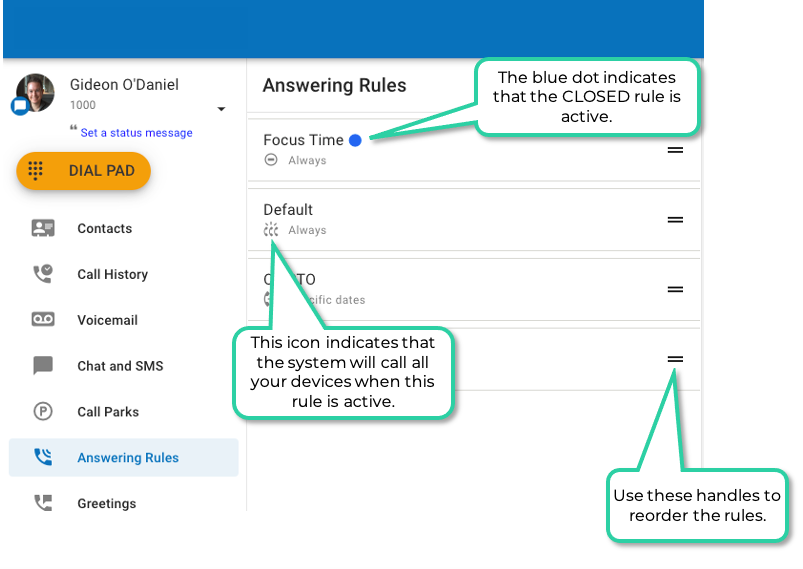
- Answering Rules — your rules, with the active one marked by a blue dot. Time frames say when a rule is active; rules say what happens; priority decides ties. See Answering Rules.
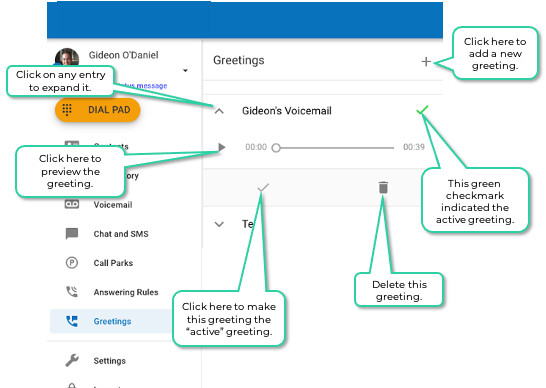
- Greetings — your voicemail greetings: activate, edit or delete them.
- Call Park — your organization's parking spots with caller ID, who parked the call, and how long it's been parked; park/un-park from here.
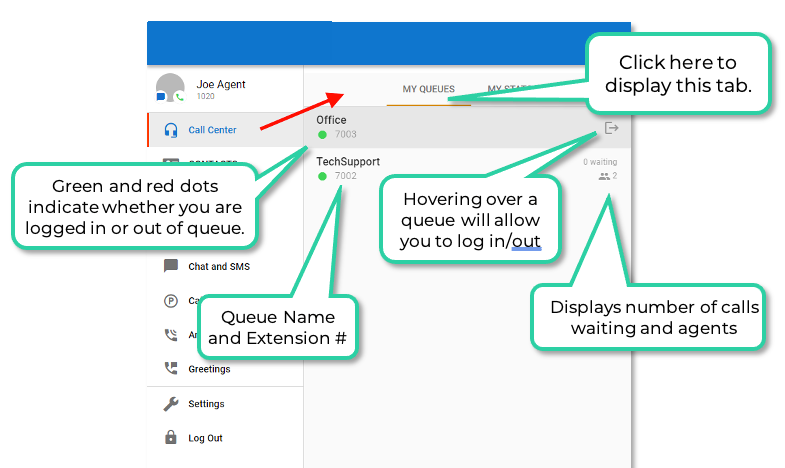
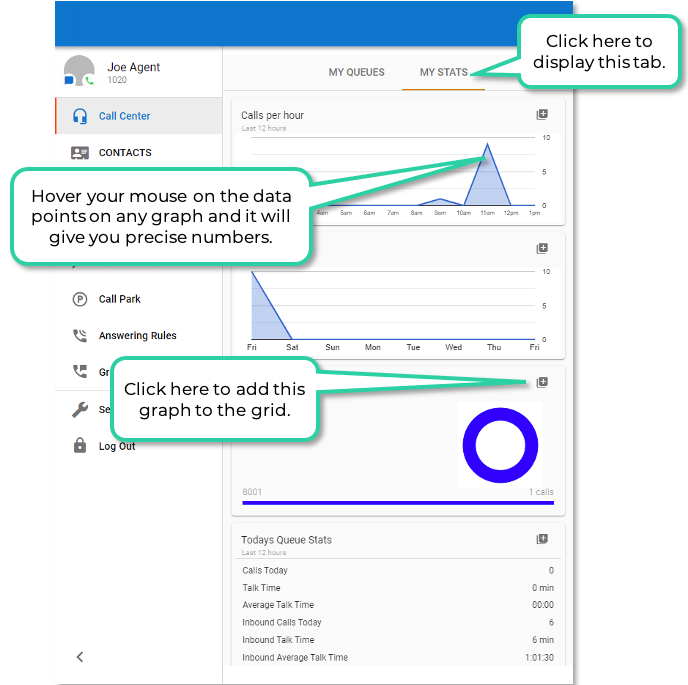
- Call Center — for agents: My Queues (queues you serve) and My Stats (your statistics across queues).
- Settings — pick your speakers and microphone, and other web phone options.
Related: Voicemail · Mobile App · Portal for Users
↑ Back to top