Portal for Users
The Portal for Users is your personal web tool: messages (voicemail, SMS, fax), personal contacts, answering rules and time frames, phone settings, hold music, and your extension's call history. Log in at login.primecall.com/portal.
Home
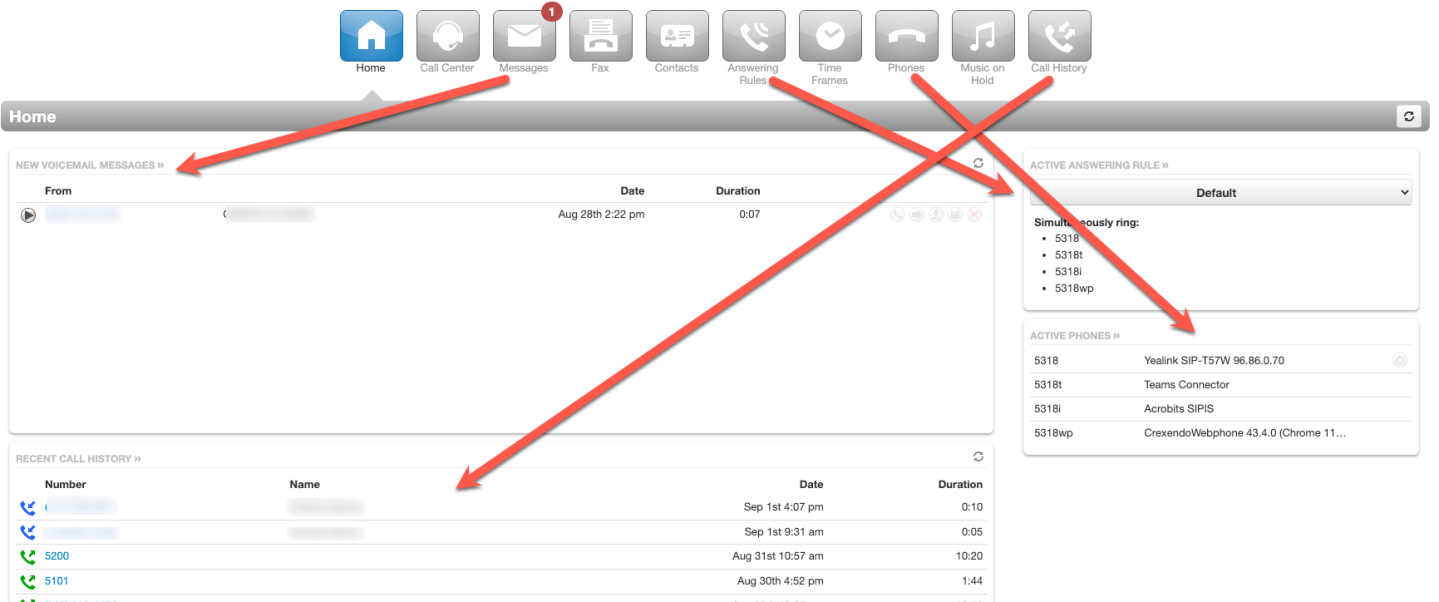
An at-a-glance view of everything: New Voicemail Messages, Active Answering Rule, Active Phones, and Recent Call History.
Call Center (Agents Only)
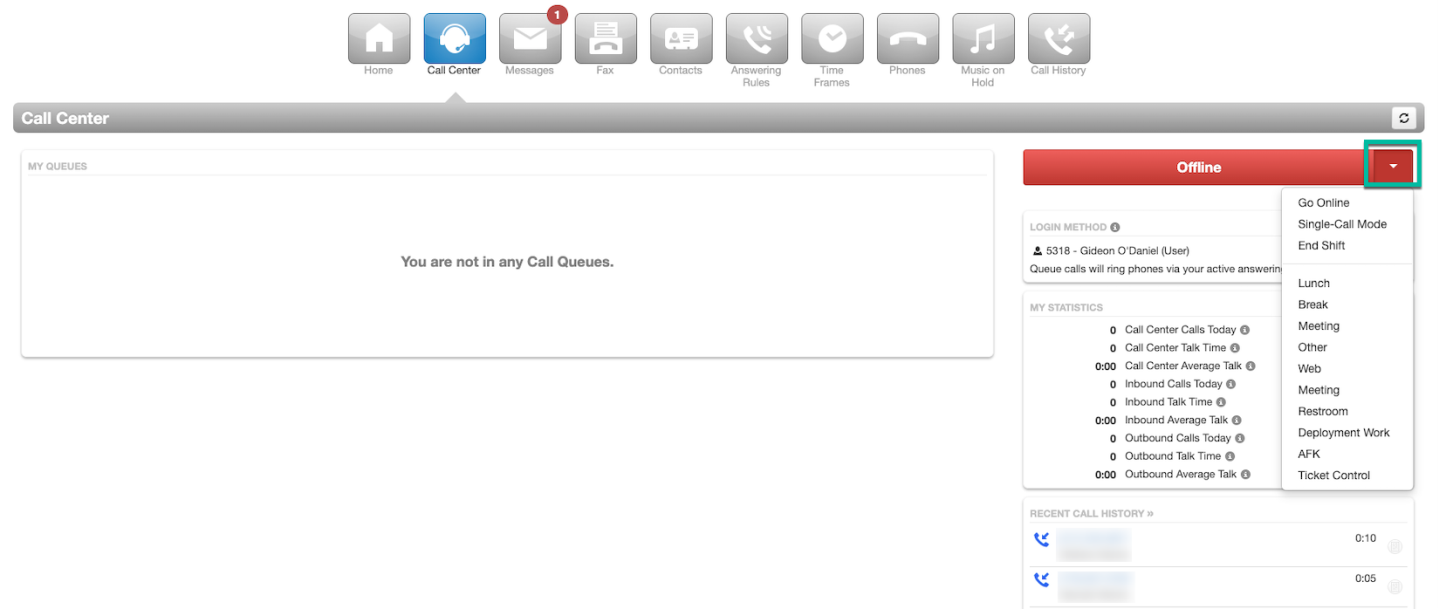
Visible only if you're a Call Center Agent: your current statistics, call history, and the queues you're assigned to, with login/logout for all or specific queues. To log out with a reason, select the arrow next to the status and choose the reason.
Messages
The Message Center has three tabs:
- Voicemail — new voicemails, playable directly; saved messages via the drop-down.
- Chat — internal messages with other users in your domain; if you've been granted SMS, external texts live here too (see SMS).
- Settings — all your voicemail options: enable/disable, sorting, operator forward (press 0), copy to extensions, transcription, greetings, recorded name and email notifications. Full details in the Voicemail guide.
Fax
If your organization faxes with PrimeCall, you can send, receive and read faxes through the Portal and email — see the Fax guide.
Contacts
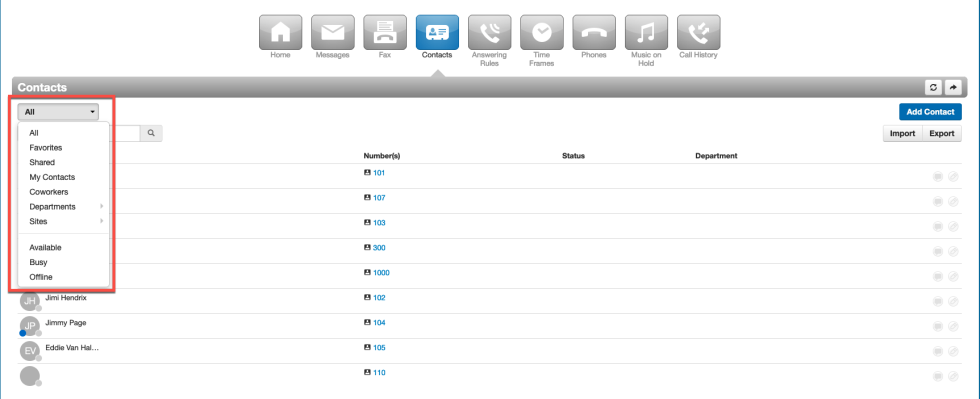
All internal contacts plus any personal contacts you add. Filter with the drop-down: All, Favorites, Shared, My Contacts, Coworkers, Departments, Sites, Available, Busy, or Offline.
Internal contacts carry colored status dots:
- Green — available for a call
- Red — not available for a call
- Blue — can receive a chat message (logged in to the portal, web phone or mobile app)
To add a contact: select Add Contact (upper right), enter the details, and Save.
Time Frames
Personal time frames mark periods you want the system to know about — vacations, recurring meetings, emergency leave. A time frame by itself does nothing; pair it with an Answering Rule to act on it.
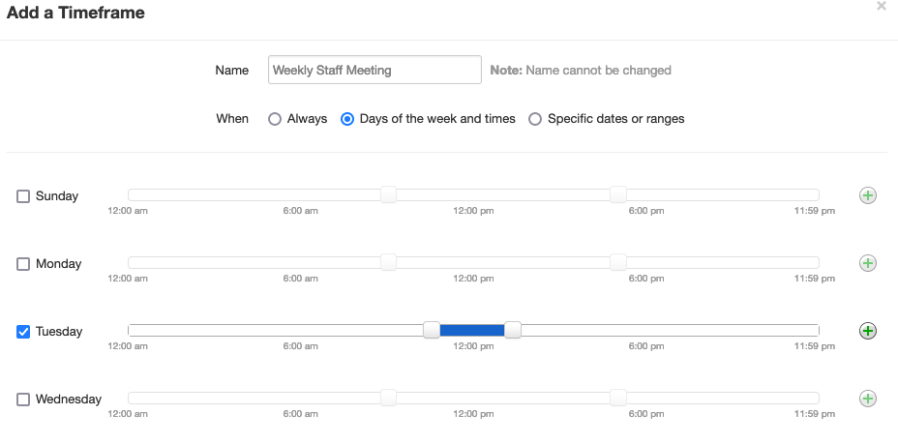
- From the Portal select Time Frames → Add Time Frame (top right).
- Name it something recognizable (e.g. "Weekly Team Meeting").
- Choose when it applies:
- Always — in effect until you deactivate it.
- Days of the week and times — recurring weekly schedules (meetings, personal business hours, half-day Fridays). A scheduler opens to set it.
- Specific dates or ranges — vacations, appointments, etc.
- To control what your calls do during the time frame, add an answering rule for it.

Answering Rules
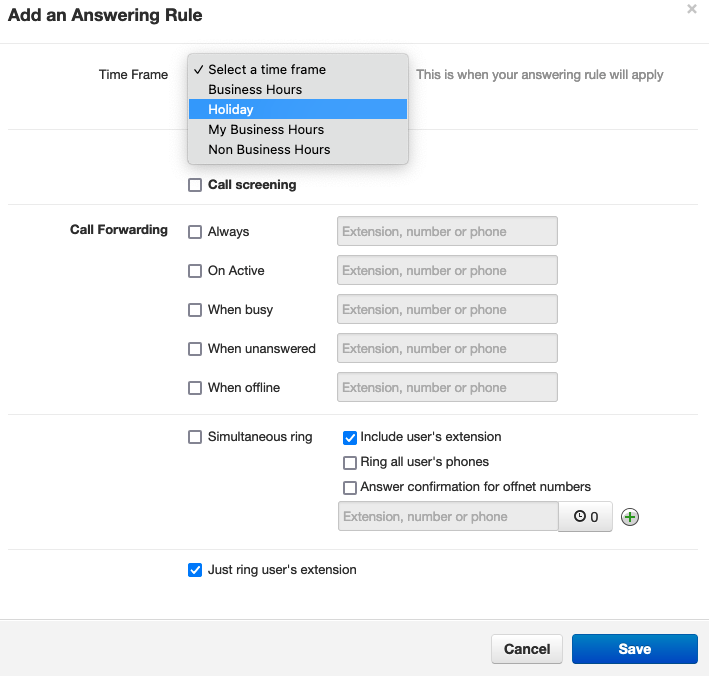
Answering rules tell the system what to do when your devices receive a call during a given time frame. Rules take the name of the time frame they're attached to (e.g. the "Business Hours" rule follows the "Business Hours" time frame).
- Select Answering Rules → Add Rule (top right).
- Pick the time frame the rule applies to.
- Choose the action: Do Not Disturb, call forwarding (to voicemail, an outside number, or another user), or which phones ring (e.g. mobile app only, desk phone only).
- Select Save.
Phones
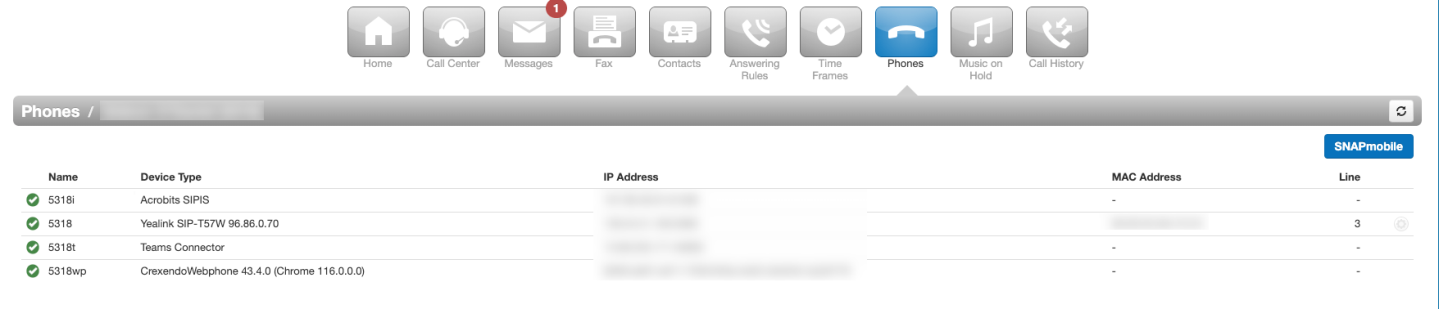
Every device registered to you. For desk phones, edit the line/feature buttons by selecting the gear icon next to the phone — see Button Builder.
Music on Hold
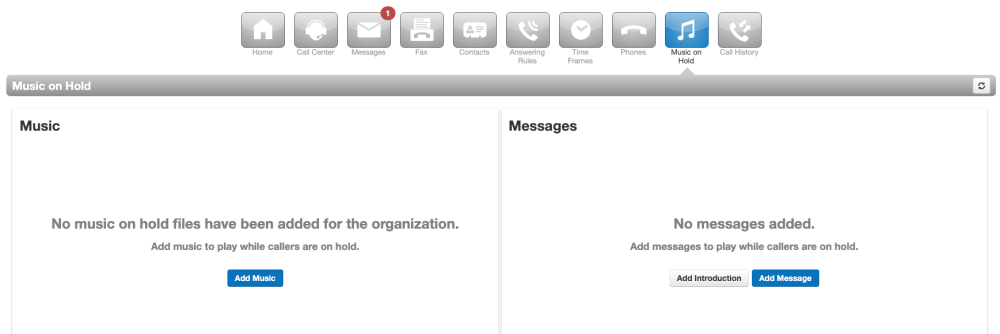
Set personal hold music or messages for when you put a caller on hold. Usually hold music is set at the domain level by the Office Manager — check with them before adding your own. Steps are in Music on Hold.
Call History & Blocking
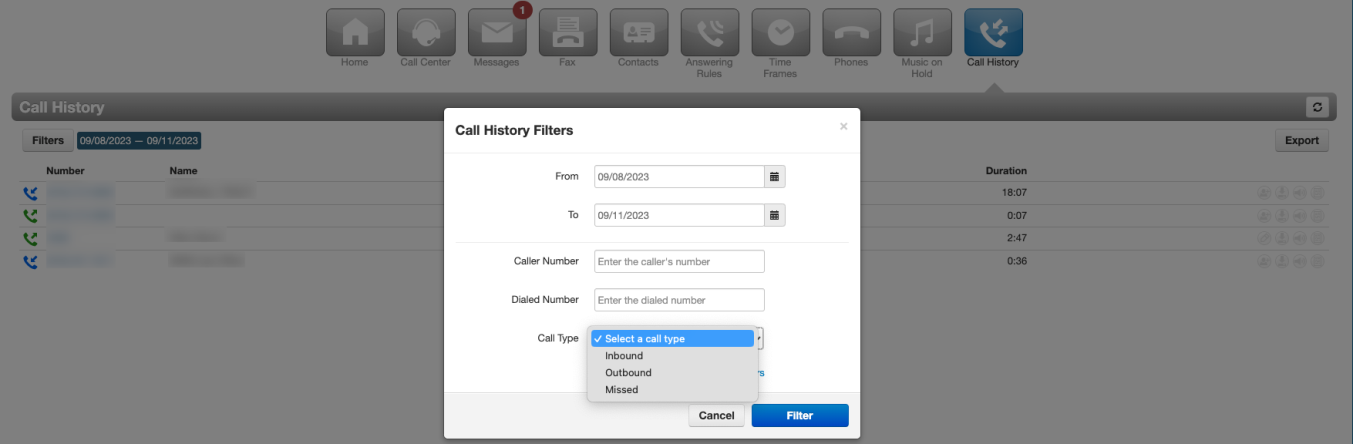
A record of all calls in and out of your extension. The portal shows the last three days by default.
- Select Filter (top left of Call History).
- Pick dates and any other criteria — Caller Number, Dialed Number, Call Type.
- Select Filter to run the search.
Block spam or robocalls
- Select the Blocked Numbers button.
- Enter the number and press + — or use the Block Call icon in a call's details.
Blocking as a user only blocks the number for your extension, not the whole domain.