Mobile App
The PrimeCall mobile app turns your iPhone or Android into your office phone: internal and external calls, transfers, texting (internal chat and SMS), the company directory, and your voicemail.
Requirements & Sign-In
- An Android or iOS device with the app installed from your app store.
- Access to Mobile granted in the PrimeCall phone system.
- Your username and password — the same credentials as the Portal.
Missing something? Contact PrimeCall support: 844.597.7463 · [email protected].
Launch the app and sign in — the Keypad screen always appears first.
Making a Call
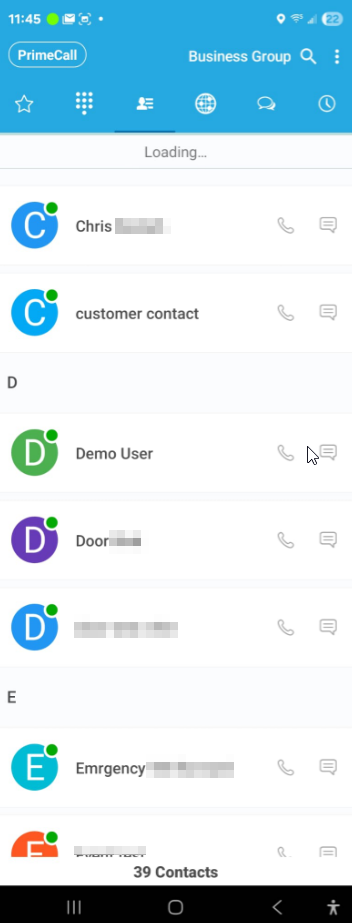
- Contacts — tap the contact, then the phone icon.
- Call History — tap an entry to return the call.
- Voicemail — tap the phone icon on a voicemail entry to call the person back.
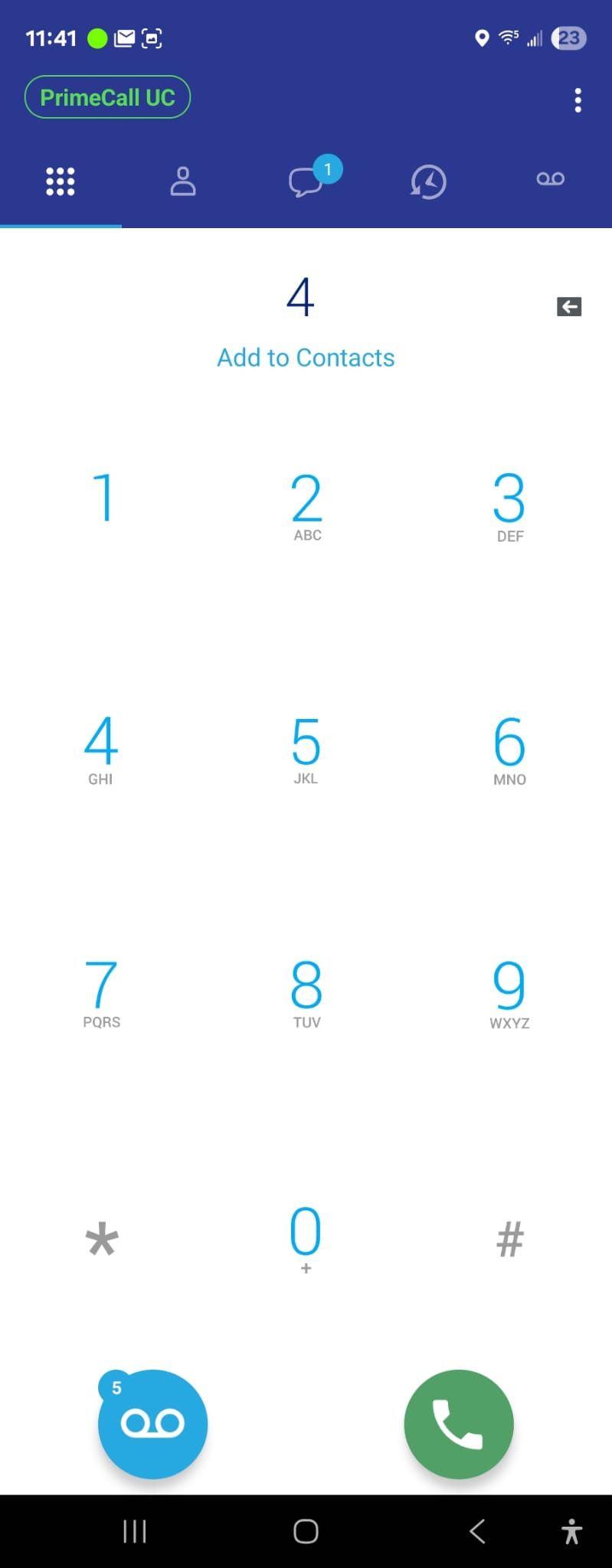
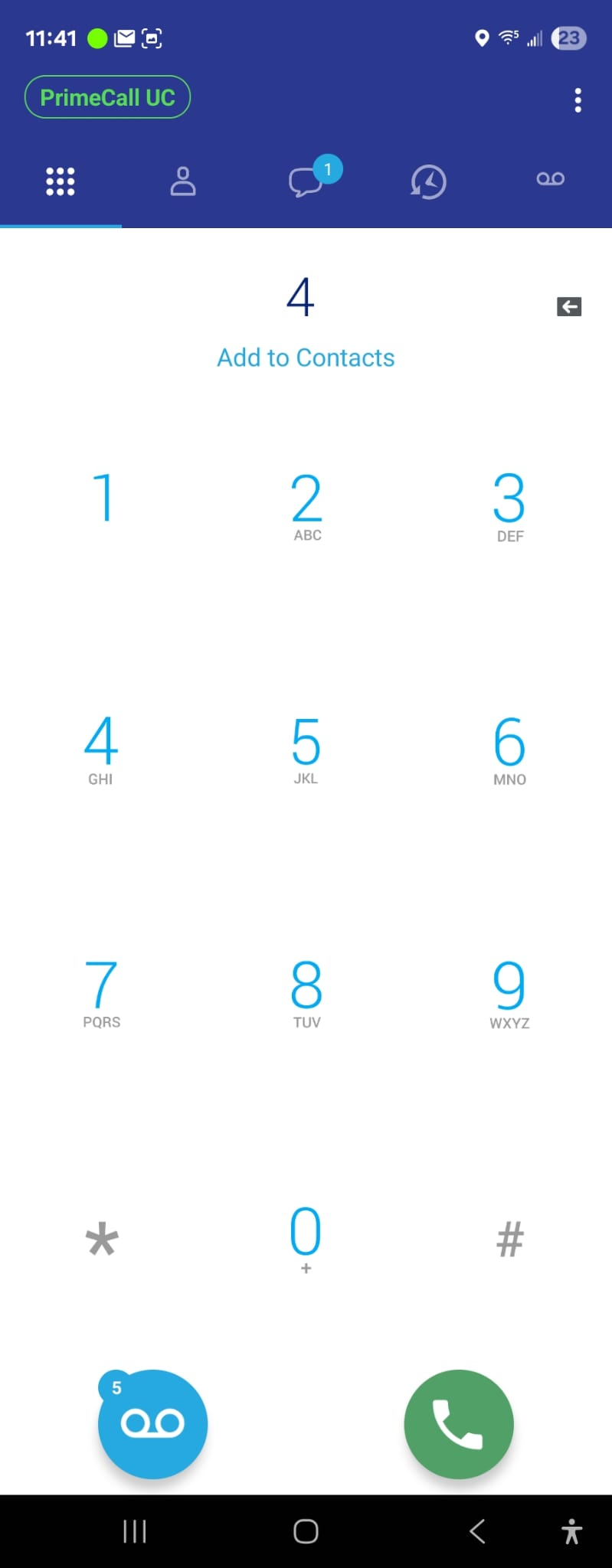
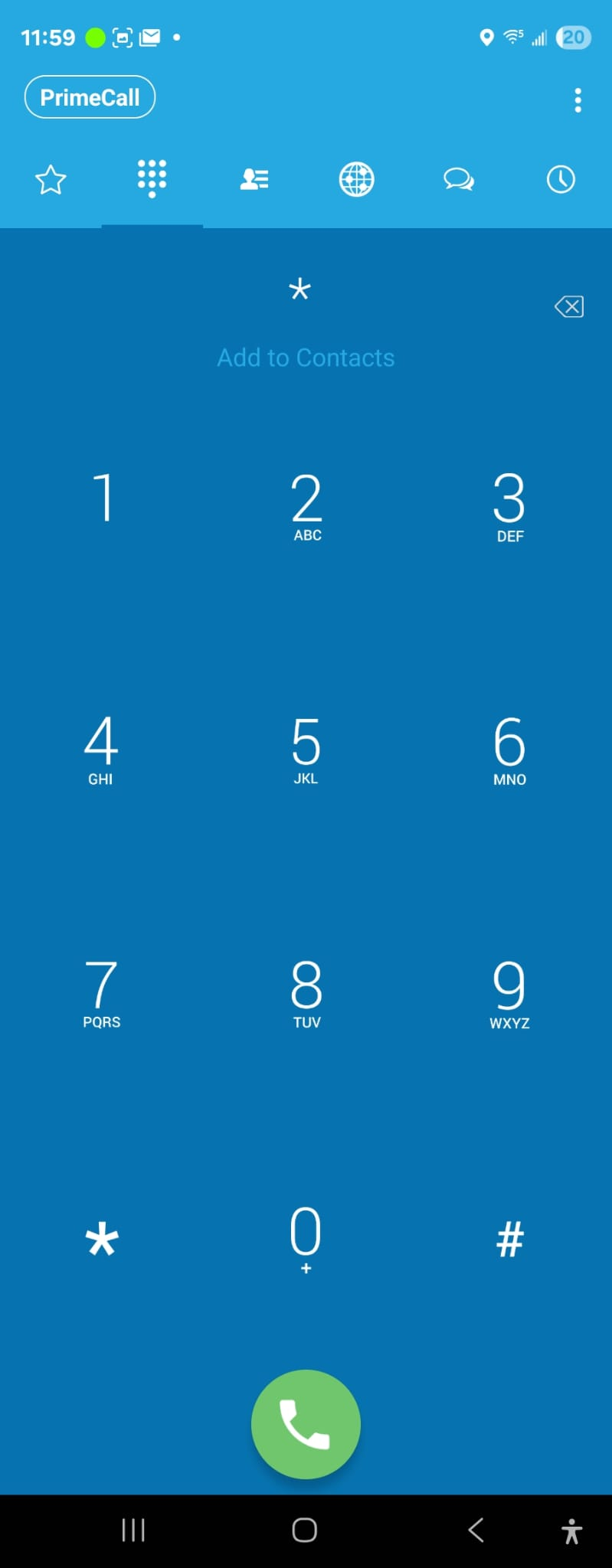
- Keypad — dial manually. For international calls, press and hold 0 for the + sign, then the country code. The call button also works as redial: tap it twice to call your last number.
Options During a Call
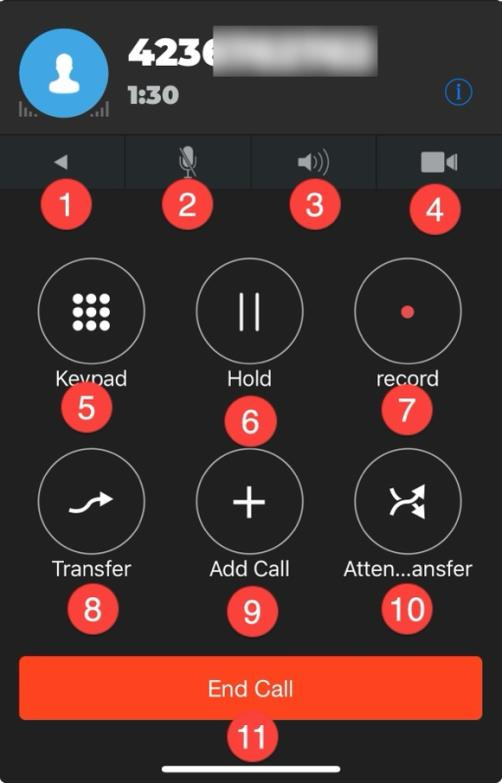
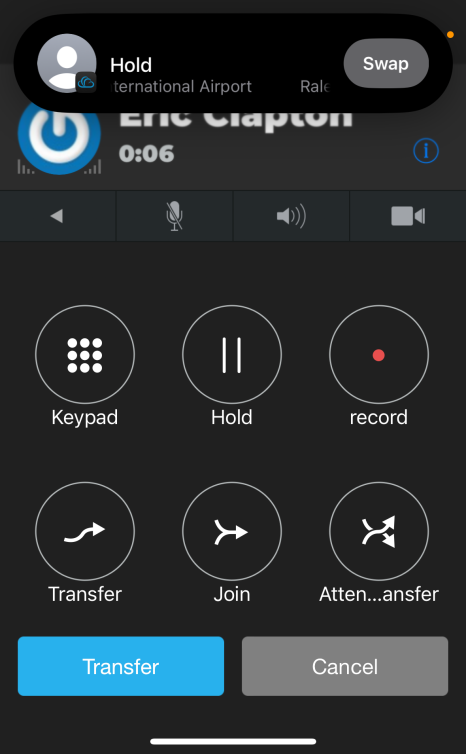
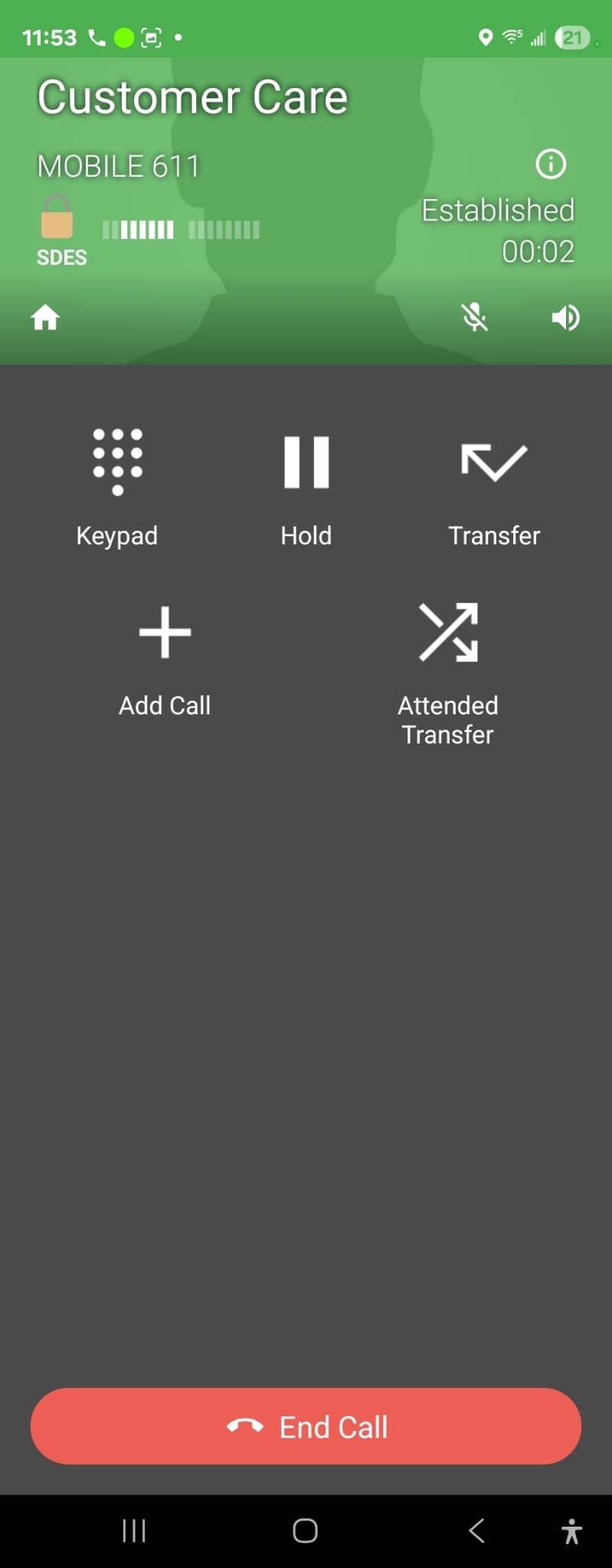
- Back to Phone — keeps the call active while you use other areas of the app.
- Mute — the caller can't hear you (you still hear them).
- Speaker — speakerphone.
- Camera — video calling with internal users who have video capability.
- Keypad — dial pad for menu selections ("X" returns to in-call options).
- Hold — tap again to resume.
- Record — records all or part of the conversation to your phone's local storage. (Domain-level recordings are accessed by your administrator in the Portal.)
- Transfer (blind) — tap Transfer, dial the number/extension and tap the green call button; or choose Contacts and tap the phone icon on the contact.
- Add Call — three-way calling: tap Add call (first caller goes on hold), call the second person, then tap Join Calls.
- Attended Transfer — speak to the recipient first: tap Attended Transfer (caller on hold), dial the person, then tap Transfer to hand off — or Cancel to return to the caller.
- End Call.
Getting Around the App
The navigation bar is at the bottom on iPhone and the top on Android; you can also swipe left/right to switch screens.
- Quick Dial (star icon) — a customizable speed-dial list built from your company directory, phone contacts, or manual entries. See colleagues' online/on-call status; pull down and hold to switch grid/list view.
- Messages (chat bubble) — all text messages and internal conversations (not voicemails). Conversations carry over to the Web Phone and Portal. Long-press a conversation for more options.
- Keypad (cloud icon) — dial internal extensions or external numbers. A voicemail button appears here when you have new voicemail.
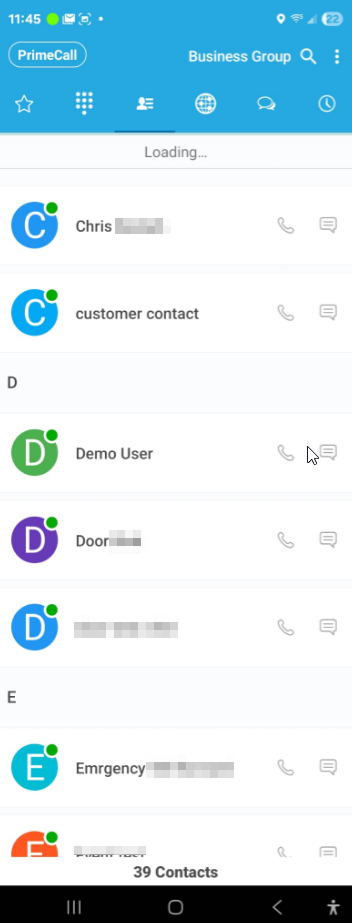
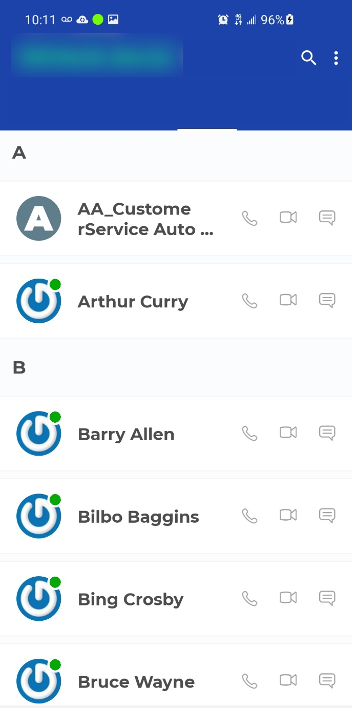
- Contacts (person icon) — your smartphone contacts (if permitted) plus the full company directory; tap the toggle to switch between them, the magnifying glass to search, and the icons to start audio, video or chat.
- History (clock icon) — business calls placed, received or missed on your extension (your personal cell history is not shown). Repeated calls collapse into one line; a call answered on another of your devices shows "Answered Elsewhere".
- Menu (three lines) — extra features: Move Call (pull an in-progress call from another device to your mobile), Visual Voicemail, Call Park (see parked calls), and User Settings (answering rules, greetings, voicemail settings).
The Options button above the navigation bar (three lines on Android, gear on iPhone) opens the app settings.


Visual Voicemail
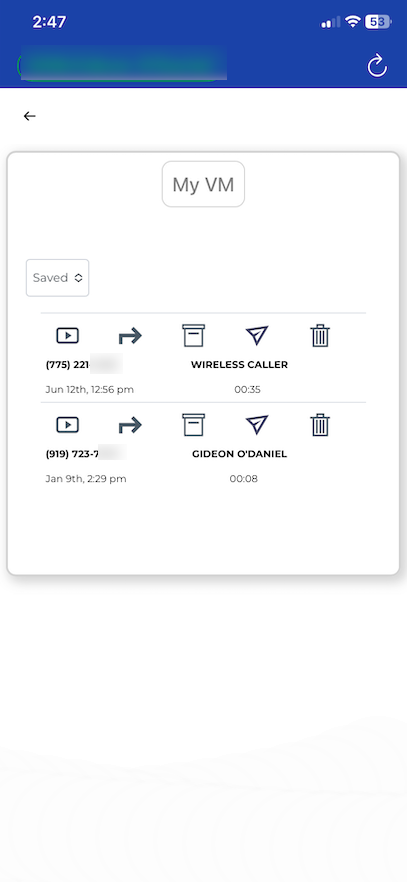
In the Menu: listen to and manage voicemails without calling the audio system. Switch between NEW, SAVED and TRASH; tap to listen; use the icons to forward, save or delete; tap the number to return the call. Transcriptions appear if the transcription feature is enabled.