Inventory: Numbers, Phones & Fax
Inventory is the Office Manager's organized list of everything your domain owns: direct-dial phone numbers, SMS numbers, phone hardware and fax numbers. It's where you point numbers at users or menus, attach time frames, assign SMS numbers, and configure phones.
Log in to the Portal as an Office Manager, select Inventory, then pick the tab you need.
Phone Numbers Tab
This tab opens by default and shows what every number is programmed to do — or whether it's free to use.
- Click a number (or its edit icon) to open its routing window.
- Choose the Treatment — what the number should do:
- User — assign a direct-dial number to a user (enter extension or name). A Caller ID Prefix lets the user see where the call was routed from.
- Conference — give outside callers a direct dial into a conference bridge.
- Call Queue — route callers straight into a queue; optional caller announcements and Caller ID Prefix available.
- Voicemail — send callers directly to an extension's voicemail. "Enhanced Voicemail" lets the caller dial another extension before or after leaving a message.
- Auto Attendant — send callers to a specific menu (enter its name or extension).
- PSTN Number — forward callers to an outside number (common for after-hours emergency lines). A Caller ID Prefix shows the caller the call is routed through this number.
- Fax Server — mark the number as a fax line, then configure it in the Fax Accounts tab.

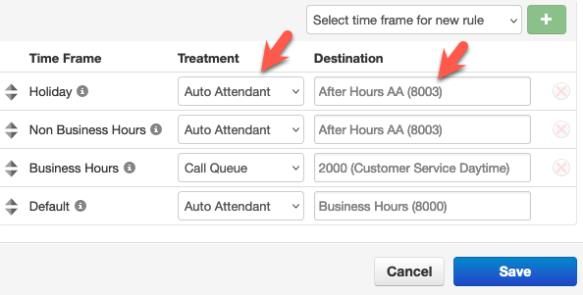
Numbers That Follow Time Frames
To make one number behave differently by time of day or holiday:
- Click the number to open its dialog.
- Switch Enable Time Frames to Yes.
- Use the drop-down arrow to add a rule: select a time frame and click the green +. Repeat for each frame.
- For each time frame, choose a Treatment (user, call queue, voicemail, auto attendant, PSTN number or fax server) and its destination, then Save.
SMS Numbers Tab
Assign an SMS number to an individual user (inbound + outbound texting) or to a call queue (inbound texts to agents).
To a call queue
- Click the available number (or its edit icon).
- Set Treatment to Call Queue, enter the queue, and click Save. See SMS & Text Messaging for the full queue setup.
To a user
- Click the available number (or its edit icon).
- Set Treatment to User, enter the user's name or extension, and click Save.
Phone Hardware Tab
All physical devices in your domain. From here you can add phones, edit them and assign them to users.
Add a new phone
- Click Add Phone.
- In the Basic tab, select the phone model from the drop-down.
- Enter the phone's MAC address (printed on the back of the phone).
- Assign it to a user by entering the user's name or extension on the first two lines.
- Click the Advanced tab to enable the company directory.
- Click Save — the phone appears in the Phone Hardware list.
Edit an existing phone
Find the phone and click its edit icon; the Basic and Advanced tabs are available for changes.
Edit a phone's buttons
For speed dials, status (BLF) keys, queue login/logout and more, click the gear icon to the right of the phone and select Yes to open Button Builder.
Fax Accounts Tab
Shows the fax numbers configured in your domain. Click the edit icon to change an existing number, or contact PrimeCall Support. To create a new fax account — physical machine, Portal faxing or email faxing — see the Fax guide.