Home › Admin & Manager Guides › Auto Attendants
Auto Attendants
An Auto Attendant (AA) is a menu for callers — "press 1 for sales, 2 for support". Use one as the first step of your call flow, as an after-hours menu, to redirect callers to queues, users, voicemail or a dial-by-name directory, or simply to play pre-recorded messages.
ℹ Before you begin: you need Office Manager privileges in the Portal. PrimeCall best practice: give each auto attendant an extension in the 8000 range. Avoid 911 and anything in the 5000 or 9000 ranges.
Basic Procedure
Set up the components in this order:
- Create the auto attendant and give it a proper extension number.
- Set the Menu Prompt (the recording callers hear).
- Set the Menu so the key options match what the prompt says.
- Set the auto attendant Options (what happens on no input / invalid input).
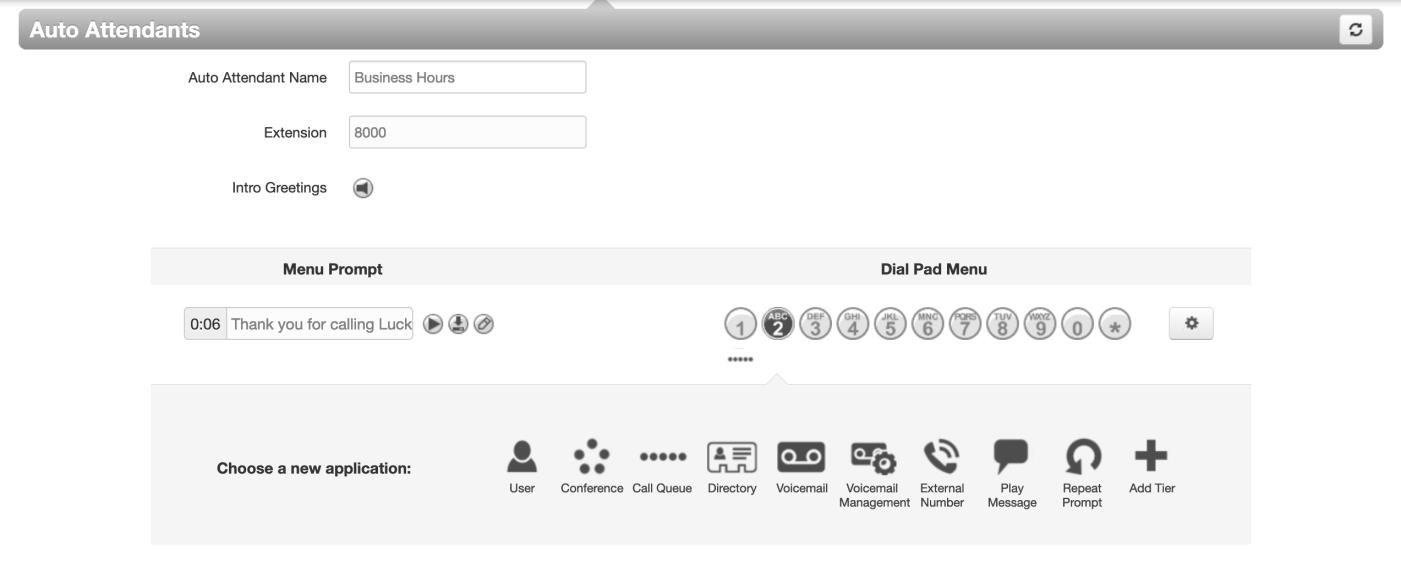
How to Create and Configure a New Auto Attendant
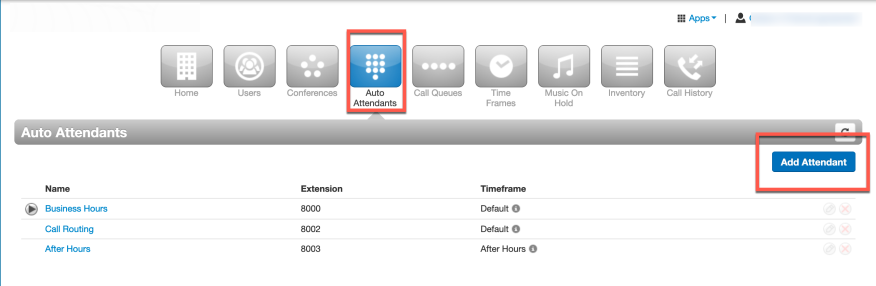
- Navigate to Auto Attendants in the Portal and click Add Attendant (upper right).
- In the "Add an Auto Attendant" dialog enter:
- Name — an appropriate name for the AA.
- Extension — a number in the 8000 range.
- Time Frame — select default; you control when this attendant is active from the Inventory section.
- Click Add. The configuration screen appears. You can also set an optional "Intro Greeting", but the Menu Prompt is usually sufficient.
- Click the pencil icon to add the menu prompt. Three ways to create it:
- Text-To-Speech — type your message and pick a voice.
- Upload — use a previously recorded message saved on your computer.
- Record — the system calls an extension or phone number so you can record it.
- Build the menu to match your prompt (see options below).
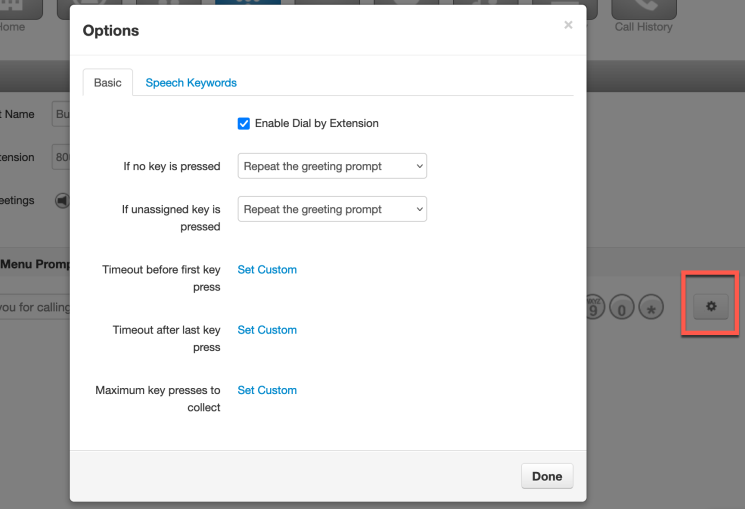
- Review the attendant options by clicking the gear icon on the right — set what happens when a caller makes no choice or presses an unassigned key. Click Done.
- Click Save.
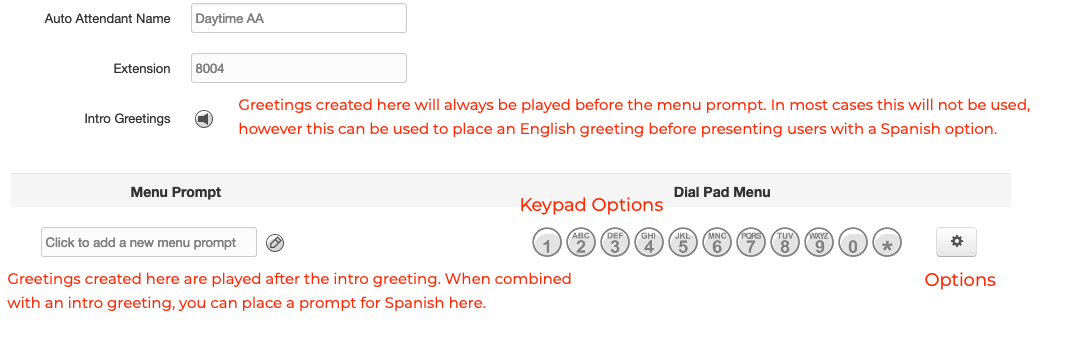
Menu Options
Each key on the menu can do one of the following:
| Option | What it does |
|---|---|
| User | Routes the call directly to a user. |
| Conference | Routes to a specific conference bridge extension. |
| Call Queue | Routes to a call queue for assistance. |
| Directory | Your company's dial-by-name directory. |
| Voicemail | Sends the caller to a specific voicemail box (group or user). |
| Voicemail Management | Lets users call in and check their own voicemail box. |
| External Number | Routes to an outside phone number. |
| Play Message | Plays a message (upload, record, or text-to-speech). |
| Repeat Prompt | Repeats the original menu prompt. |
| Add Tier | Adds a second tier of options with its own prompt (once per attendant). |
Place It in Your Call Flow
Go to the Inventory section and click the phone number you want to associate with the auto attendant, then set its Treatment to Auto Attendant with the attendant's extension.
💡 Tip: To play different greetings by time of day/holiday while keeping the same menu, add multiple Intro Greetings, each tied to a time frame.
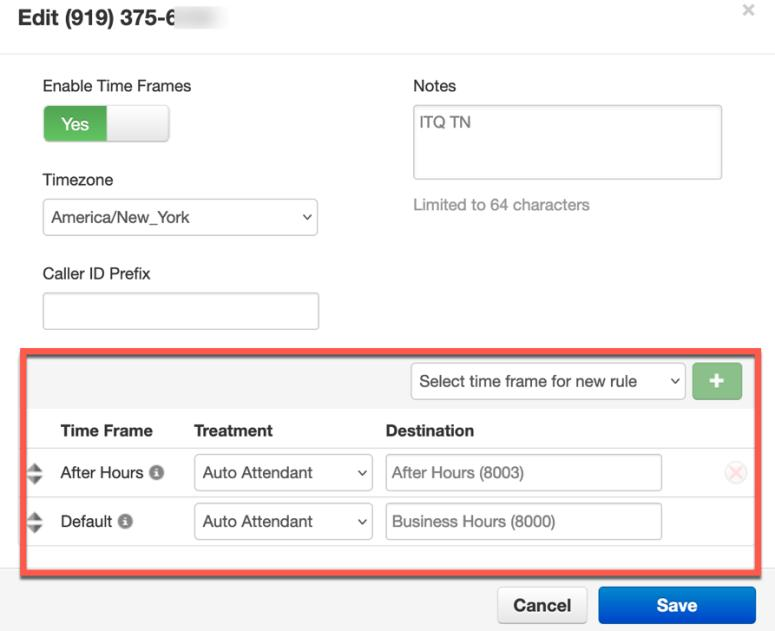
Related: Time Frames · Call Queues · Voice AI Studio
↑ Back to top