Home › Admin & Manager Guides › Voice AI Studio
Voice AI Studio
Voice AI Studio creates professional welcome greetings, auto-attendant/IVR menu recordings and call messages, and mixes them with license-free music — ready to play to queuing and holding callers.
Step-by-Step Walkthrough
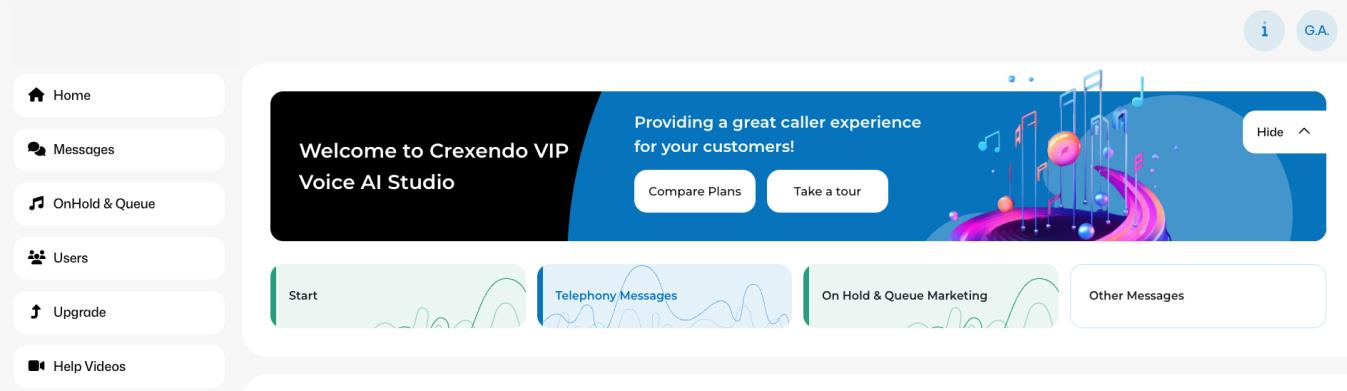
- Sign in to the Portal as an administrator and click Voice AI Studio at the top of the page.
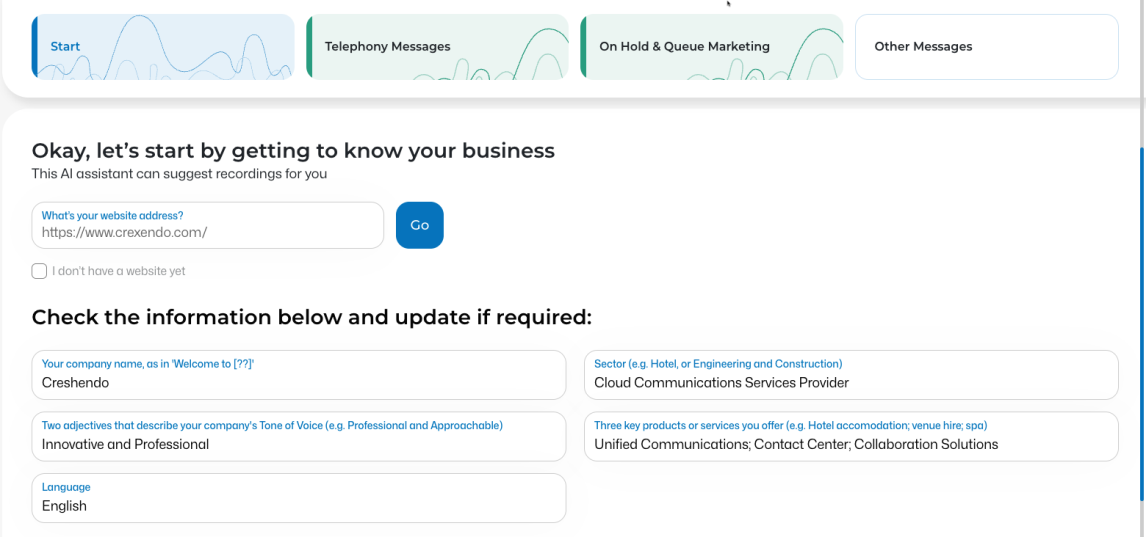
- Select Start and enter your company's website URL — the Studio pulls your company information automatically (or enter it manually).
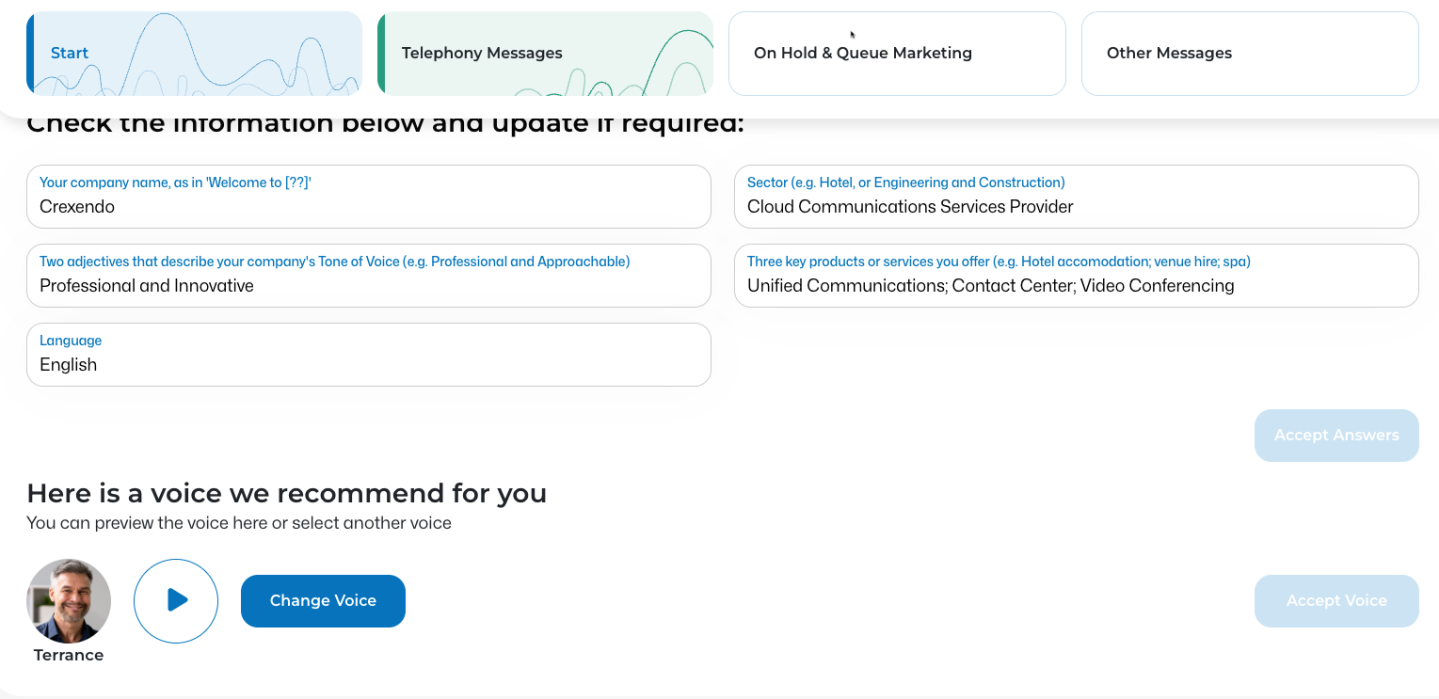
- Select Accept Answers to confirm your information.
- The Studio recommends a voice. Play the preview, or select Change Voice to browse other options, then Accept Voice.
- Select Next to proceed to Telephony Messages.
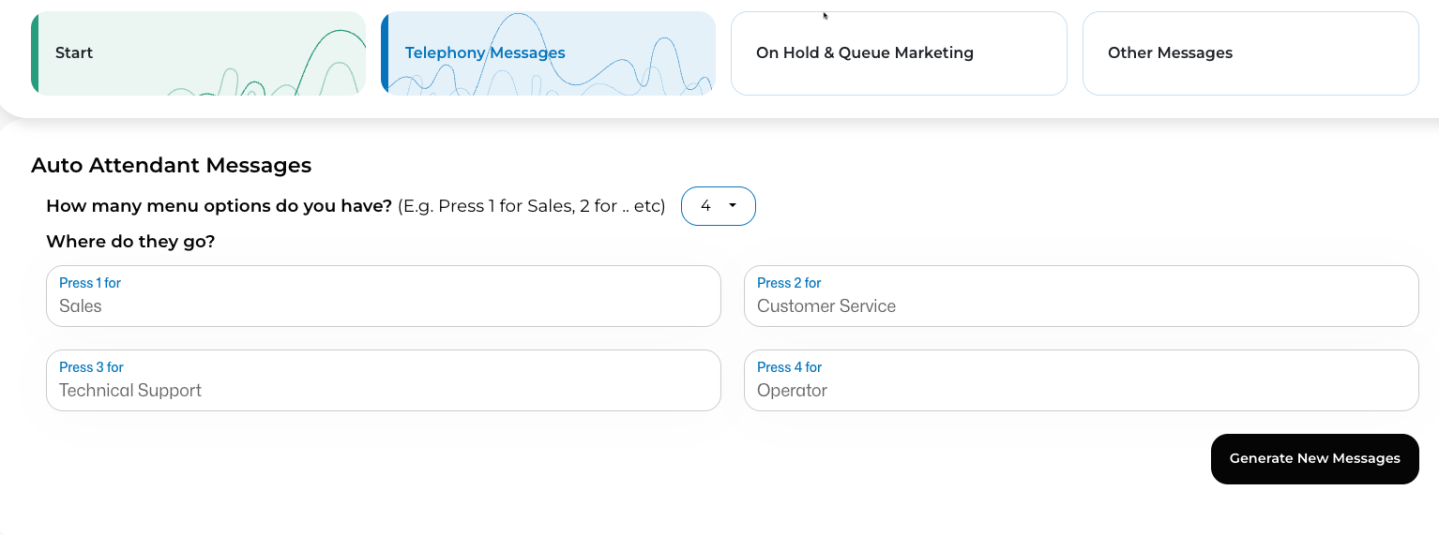
- Choose how many menu options your auto attendant offers, and fill in the options (Sales, Customer Service, Technical Support, …). Select Generate New Messages to get several suggestions — or write your own.
- Preview each message with the play button. When satisfied, select + to name and Create the message; use Download to save the file to your device.
- Explore and edit the other message types below — welcome messages, closed messages, holiday messages and more — then select Next.
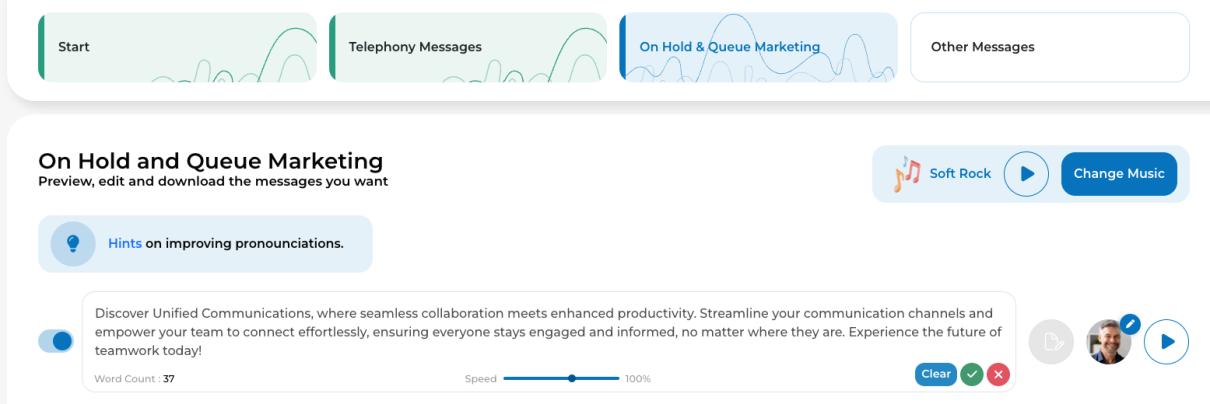
- Pick your hold music via Change Music (preview styles, click Select on your choice, then close the box).
- To play messages while callers are on hold, toggle the pre-populated messages on, or edit them to personalize. At the bottom of the screen, set how many seconds to wait before the first message plays and between messages.
- Select Download to save the compilation, or Upload to send it straight to your Music On Hold section.
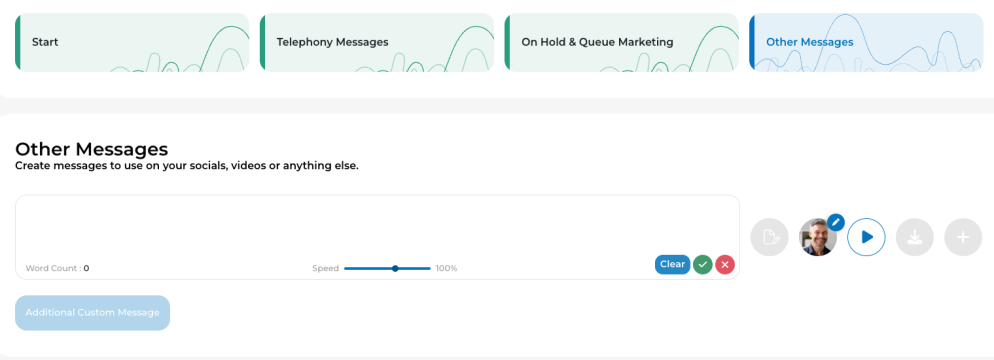
- Select Next for Other Messages — any miscellaneous messages your domain still needs. Enter, preview, then upload or download.
ℹ Heads-up: after choosing Upload, it can take up to 20 minutes for a new compilation to appear in Music On Hold.
Previously created messages are available anytime under the Messages and OnHold & Queue options in the navigation pane.

Related: Music on Hold · Auto Attendants
↑ Back to top