Home › Admin & Manager Guides › Call Center Reporting
Call Center Reporting
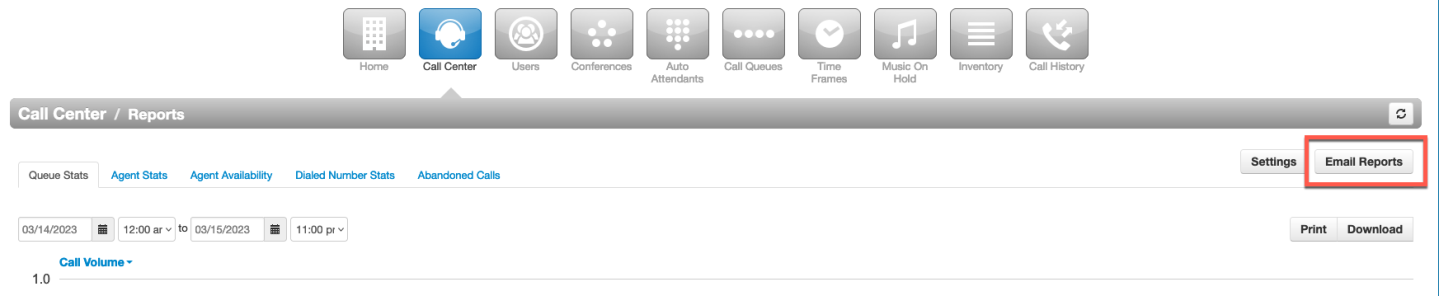
Gather data on queues and agents: build custom reports on the fly or on a schedule, display or print them, and export to CSV. To get started, log in to the Portal, select Call Center, then Reports.
⚠ Scope: Call Queue reporting covers call center activity only, not general user activity. An outbound call made outside the call center won't appear here — use Call History for those.
Reports Builder
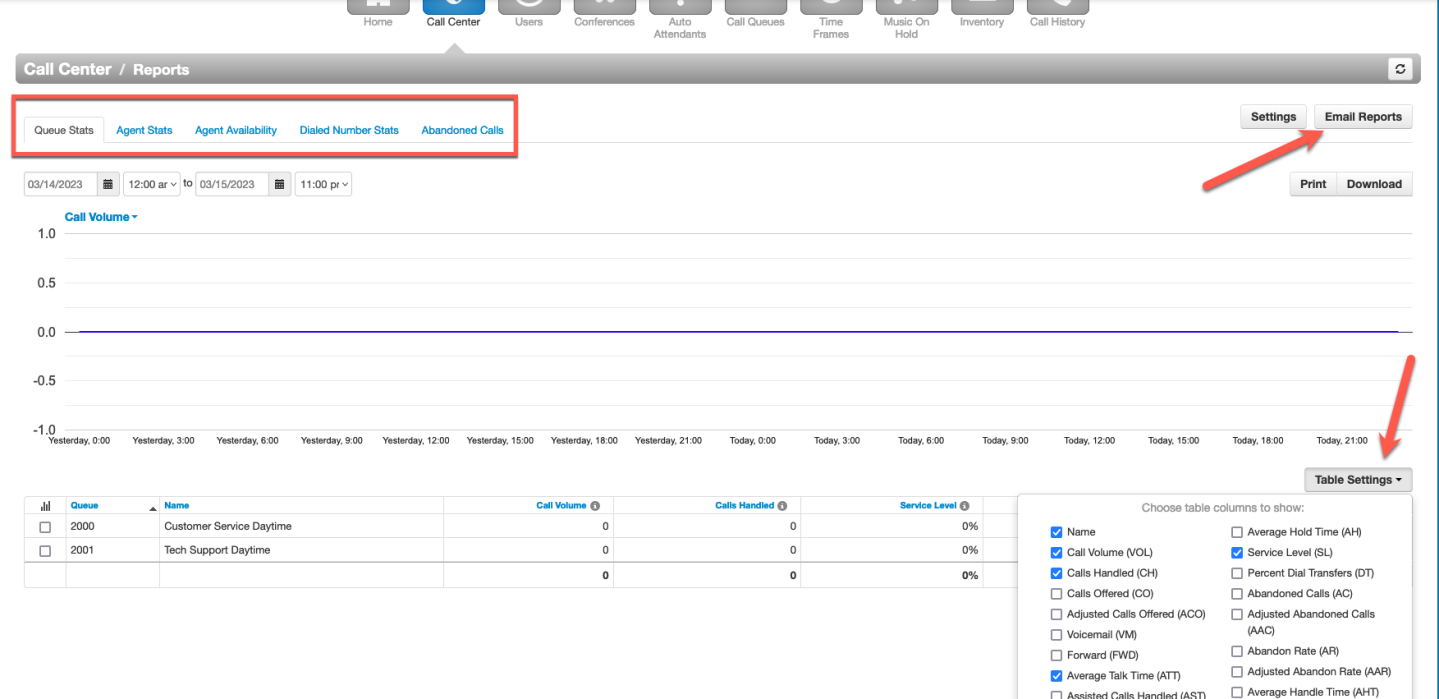
- Pick a report from the tabs: Queue Stats, Agent Stats, Agent Availability, Dialed Number Stats, or Abandoned Calls. Each tab builds a pre-populated table.
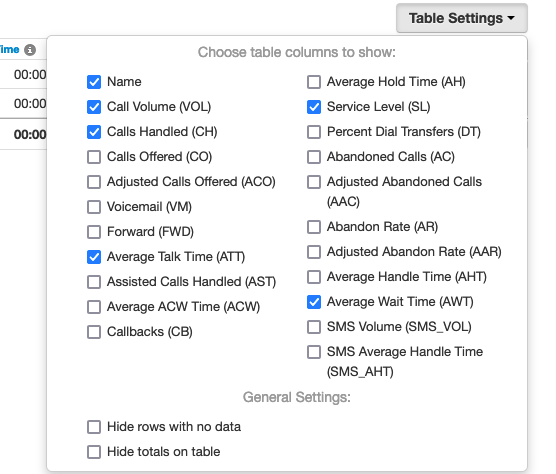
- Select Table Settings (right side) to customize which statistics are included.
- Click any number in the table to open the list of corresponding calls — including play/download buttons for recordings.
Queue Statistics Explained
| Stat | Meaning |
|---|---|
| Call Volume (VOL) | Calls originating through a queue — answered, abandoned, forwards and voicemail. |
| Calls Handled (CH) | Calls answered by an agent via a queue. |
| Calls Offered (CO) | Calls that reached the queue for dispatch to agents; includes abandoned, excludes forwards/voicemail. |
| Adjusted Calls Offered (ACO) | Calls Offered, excluding calls abandoned in under 10 seconds. |
| Voicemail (VM) | Calls handled by the automated voicemail system. |
| Forward (FWD) | Calls sent to another queue or offnet number, including forwards to voicemail. |
| Average Talk Time (ATT) | Average minutes an agent talks per answered queue call. |
| Calls Assisted (AST) | Calls answered then passed to a different agent. |
| Average ACW Time (ACW) | Average time between end of call and submitting a disposition (after-call work). |
| Callbacks (CB) | Calls where the caller requested a callback instead of waiting. |
| Average Hold Time (AH) | Average time on hold with an agent (excludes queue wait). |
| Service Level (SL) | Ratio of calls meeting your configurable service-level agreement. |
| Percent Dial Transfers (DT) | Percentage of queue calls that were offered to an agent. |
| Abandoned Calls (AC) | Calls that left the queue before reaching an agent. |
| Adjusted Abandoned (AAC) | Abandoned calls, excluding those under 10 seconds. |
| Abandon Rate (AR) | Percentage of offered calls that were abandoned. |
| Adjusted Abandon Rate (AAR) | Percentage of offered calls abandoned in under 10 seconds. |
| Average Handle Time (AHT) | Average agent time per call: talk + hold + disposition. |
| Average Wait Time (AWT) | Average seconds a caller waited before being dispatched to an agent. |
| SMS Volume (SMS_VOL) | SMS messages originating through a queue. |
| SMS Avg Handle Time (SMS_AHT) | Average agent time handling an SMS session. |
Agent Statistics Explained
| Stat | Meaning |
|---|---|
| Calls Handled (CH) | Queue calls answered by the agent. |
| Time Talking (TT) | Minutes on answered queue calls. |
| Average Talk Time (ATT) | Average minutes talking per answered queue call. |
| Calls Assisted (AST) | Calls answered then passed to another agent. |
| Average ACW Time (ACW) | Average time between call end and submitting a disposition. |
| Average Hold Time (AH) | Average caller hold time with the agent (excludes queue wait). |
| Average Handling Time (AHT) | Talk + hold + disposition time per call. |
| Outbound Calls Today (OATT) | Outbound attempts (excludes on-net and conference calls). |
| Outbound Answered (OANS) | Outbound calls answered by the remote party (incl. voicemail). |
| Outbound Talk Time (OM) | Minutes on outbound calls (talk + hold; excludes call center, on-net, conference). |
| Outbound Average Talk (OAvg) | Average outbound call length. |
| Inbound Calls Today (IA) | Attempted inbound calls to the agent (incl. call center). |
| Inbound Answered (IANS) | Inbound calls answered (incl. call center). |
| Inbound Talk Time (IM) | Minutes on inbound calls (talk + hold). |
| Inbound Average Talk (IAVG) | Average inbound call length. |
Email & Automate Reports
- Select Email Reports (top right).
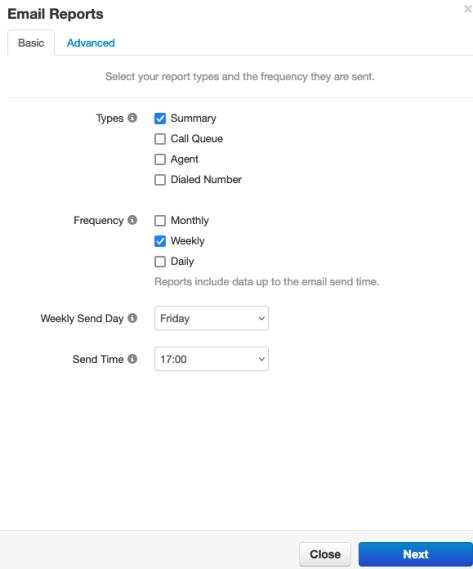
- Choose the Type and Frequency, plus day of week and time of day. The Advanced tab then appears.
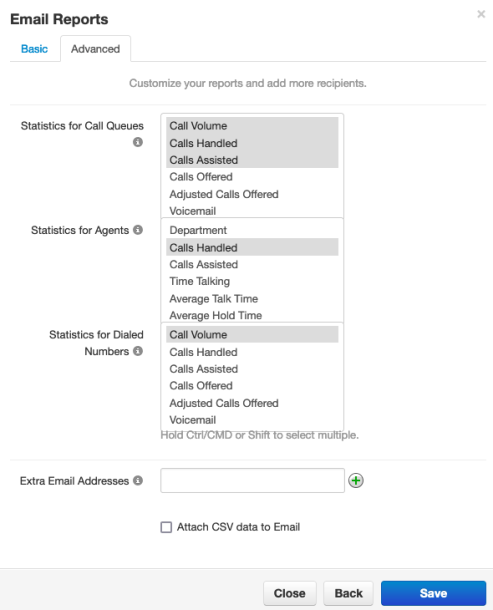
- In Advanced, select the statistics to include (hold Ctrl — ⌘ on Mac — or Shift to multi-select).
- Add extra recipient email addresses below the statistics.
- Select Save to activate the automated report.