Home › Admin & Manager Guides › Call History & Blocking Spam
Call History & Blocking Spam
Call History shows every call to and from the domain — inbound, outbound and internal. Office Managers can filter calls, retrieve recordings, export reports, and block spam or robocalls.
ℹ Note: calls that come through a call queue also show in Call Center Reporting.
Filtering Calls
- Log in to the Portal as an Office Manager or Call Center Supervisor and click Call History.
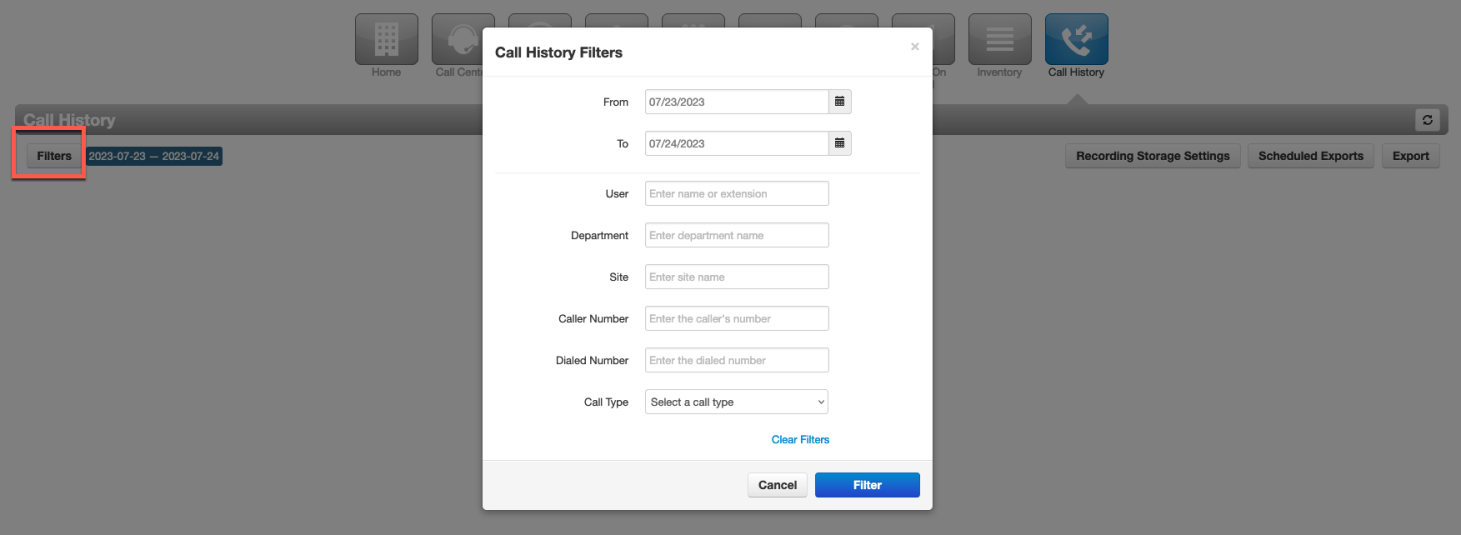
- Select Filters (top left).
- Choose your filters: Date, User, Department, Site, Caller Number, Dialed Number, and Call Type (Inbound, Outbound, Missed).
- Select Filter to run the search — or Clear Filters to reset.
Recording Storage Settings
Call recordings can be offloaded to external storage of your choice (see Call Recording for full details):
- Select Recording Storage Settings (top right of Call History).
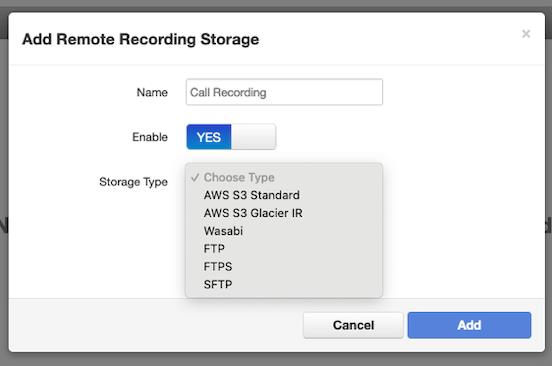
- Select Add Remote Storage.
- Enter a name and pick the storage type — AWS S3 Standard, AWS S3 Glacier IR, Wasabi, FTP, or FTPS — fill out the remaining fields, and click Add.
- The configuration then appears on the Remote Recording Storage page for future edits.
Scheduled Exports
Automate exports of your call history:
- Click Scheduled Reports (upper right). Existing schedules are listed here.
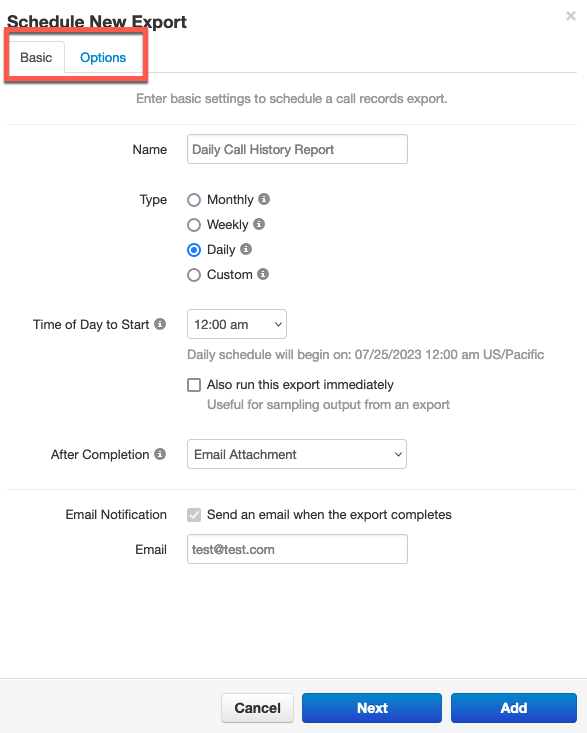
- Click New Report and fill in the Basic tab:
- Name — an easily identifiable name.
- Type — Monthly, Weekly, Daily, or Custom (opens more options).
- After Completion — do nothing, email attachment, upload via FTP, or upload via SFTP.
- Email Notification — notify a recipient of your choice.
- Use the Options tab to limit the report to a specific user.
- Click Add to save the schedule.
Need it now? Click Export to immediately download your call history as a .csv file.
How to Block Spam and Robocalls
Blocking can be done per user or domain-wide.
Block a number for the entire domain
- In Call History, select Blocked Numbers.
- Enter the number and press the + button.
- Have a whole list? Select Import, download the template, add your numbers, then browse to the file and Upload it.
How a user blocks a number
Users can block a number from reaching their own extension (this does not block it domain-wide):
- In the Portal for Users' Call History, select Blocked Numbers.
- Enter the number and press + — or block/unblock straight from a call's details with the Block Call icon.
