Home › User Guides › Desk Phone Basics
Desk Phone Basics
PrimeCall provides several desk phone models, but the basic functions work the same on all of them: answering, dialing, transferring, holding, conferencing and parking calls.
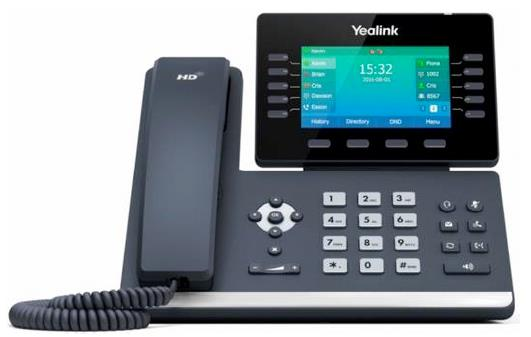
Know Your Phone Keys
- Line/Feature Buttons — the first couple of buttons on the left are your phone lines, letting you juggle multiple calls. The rest can be assigned features: speed dials, PARK buttons, internal status (BLF) keys, etc. — see Button Builder.
- Soft Keys — their function changes with what the phone is doing:
- Idle: History, Directory, Do Not Disturb, Menu
- Handset lifted: Directory, 123, Cancel
- Dialing: Send, 123, Delete, Cancel
- On a call: Transfer, Hold, Conference, End Call
- Hard Buttons — always the same: direction keys, volume, headset, voicemail, mute, hold, redial, transfer, speakerphone.
💡 Videos: quick-start videos for your phone model are on the PrimeCall Training YouTube channel.
Answering a Call
- Not on another call: lift the handset.
- On another call: press the Answer soft key — the incoming call is answered and your original call is placed on hold. Use the line buttons to switch between calls.
Making a Call
- Internal: lift the handset, enter the extension, press Send.
- External: lift the handset, enter the 10-digit number, press Send or wait 4 seconds. Speakerphone works the same: dial, then Send or wait 4 seconds.
Transferring a Call
Attended transfer (announce the caller first)
- Press Transfer — the caller is put on hold and a new line activates.
- Dial the number or extension and press SEND (#).
- Tell the recipient about the call and confirm they can take it.
- Press Transfer again (or simply hang up) to complete.
If the person can't take the call, press End Call, then reconnect to the caller (still on hold) and let them know.
Unattended (blind) transfer
- Press Transfer — the caller is put on hold.
- Dial the number or extension.
- Press Transfer again to complete.
Hold
- While on a call, press the Hold soft key or hard button. The line flashes on your phone only.
- To pick it back up, press the Hold key or the Resume soft key.
Conference Call (3-Way)
- Press the Conference soft key during an active call — the call is placed on hold.
- Enter the second party's number or extension and press Send.
- When they answer, press Conference again — all parties are joined.
For larger dial-in meetings, see Conference Bridges.
Call Park
Call Park places a call into a shared holding spot that anyone can retrieve — no direct transfer needed. Parks are created by an administrator, and park extensions are in the 9000 range (Park 1 = 9001, Park 2 = 9002, …).
Park a call
- While on a call, press the Transfer soft key or hard key (the caller goes on hold).
- Dial the Call Park extension and press the B. Transfer soft key or the Transfer hard key.
- The call is now parked. If a park is assigned to one of your feature buttons, just press that button during a call — the call parks instantly and the button lights up for everyone who has that park on their phone.
Retrieve a parked call
- Dial the Call Park's extension and press Send (or wait 4 seconds) — the call transfers to you.
- Or, if the park is on a feature button, just press the button.
ℹ Shortcuts: your phone also supports dozens of star codes for forwarding, DND, recording and pickup — see Feature Codes.
Related: Feature Codes · Button Builder · Voicemail
↑ Back to top