Home › Admin & Manager Guides › Microsoft Teams Integration
Microsoft Teams Integration
Use Microsoft Teams to make and receive PrimeCall calls on your computer or the Teams mobile app — including transfers, parking and call settings.
Teams Desktop App
Make a call
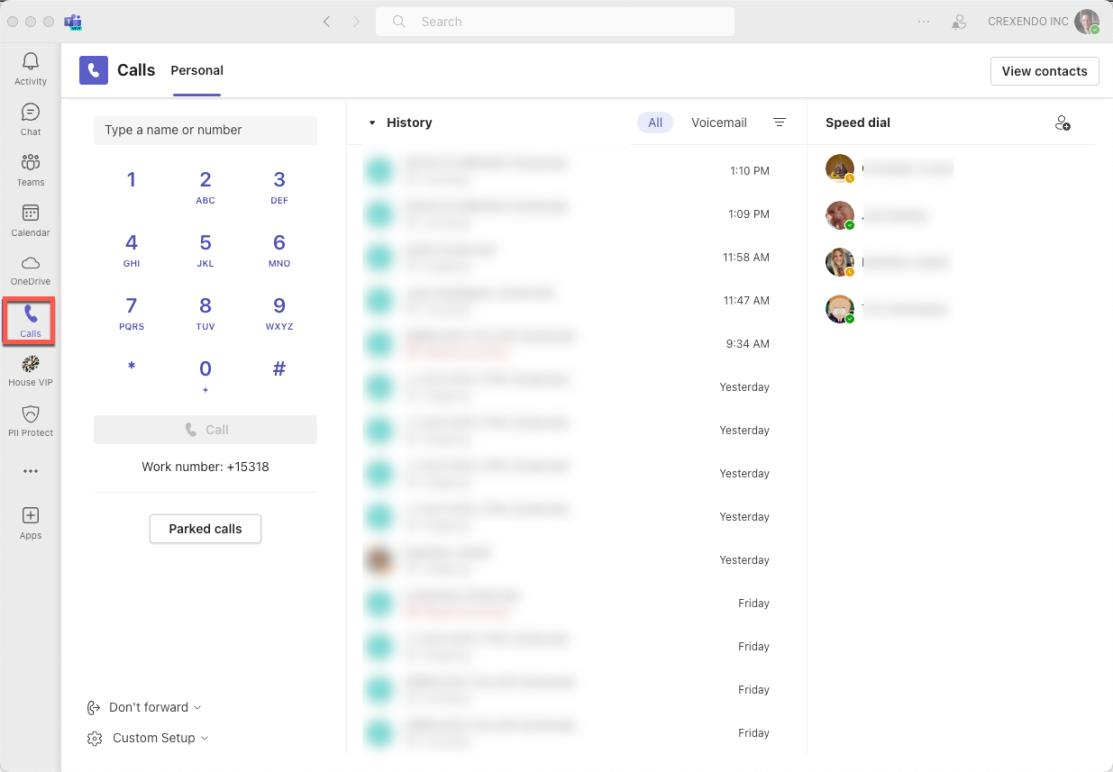
- Select the Calls icon in the left-side menu.
- In "Type a name or number", enter the 10-digit number — or a contact's name.
- Press Call.
Receive a call
- You'll hear a tone and see a screen notification with Accept with audio / Decline call.
- Accept to connect, or decline to send the caller to voicemail.
In-Call Options (Desktop)
- Dial pad — for menu selections during the call.
- Hold — places the caller on hold with a Resume option and an on-hold timer.
- Transfer — two flavors:
- Cold transfer — select Transfer, type the name or 10-digit number, then Transfer. For internal users you can choose to send unanswered calls to their voicemail or ring back to you.
- Warm transfer — select Consult then transfer, call (or chat with) the recipient first, then select Transfer at the top of the page to complete.
- People — shows current call participants.
- More — record the call, audio settings, language/speech options, and call parking:
- Park a call — select Park Call; the caller goes on hold and Teams gives you a park code.
- Retrieve a parked call — in Calls, select Parked Calls, enter the code, and Pick up.
- Mic — mute yourself or change audio settings.
Settings (desktop)
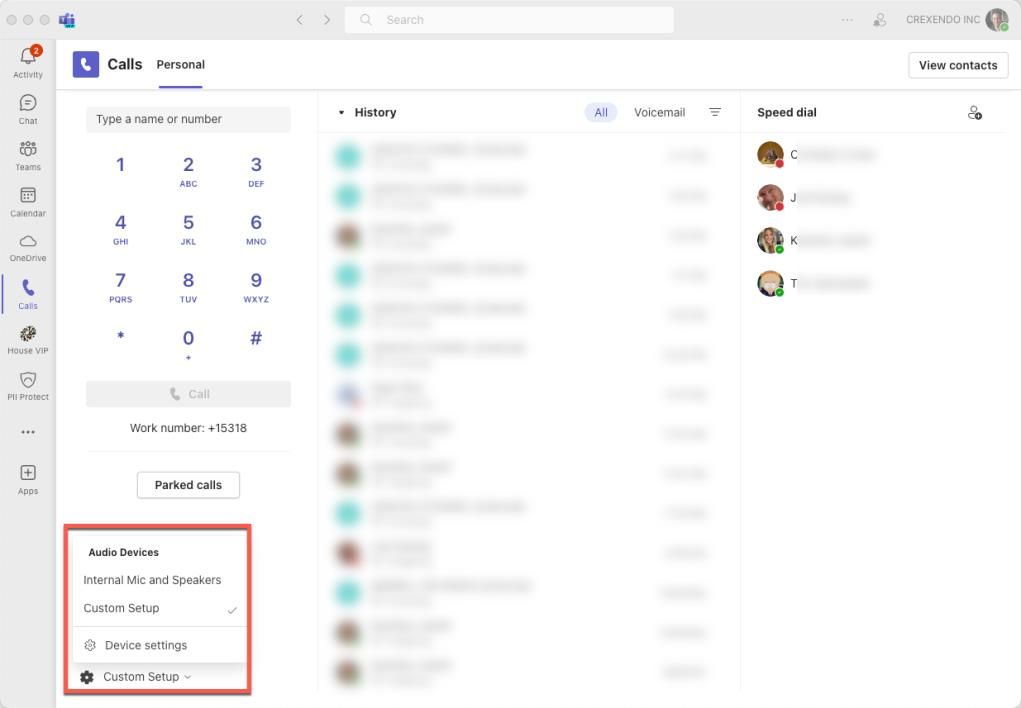
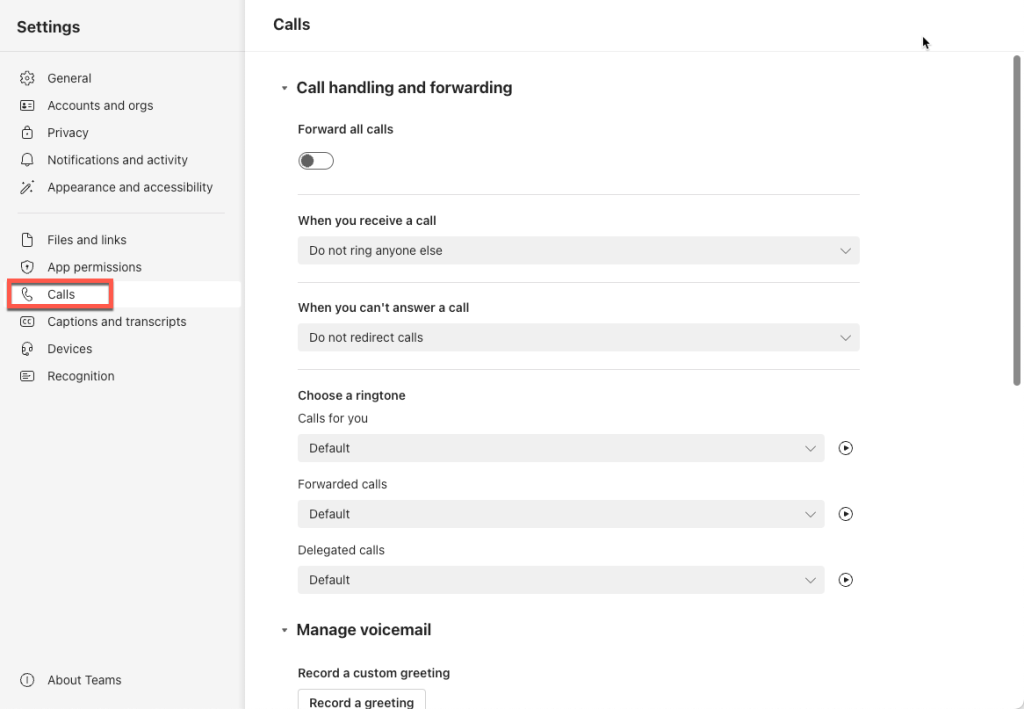
Select Custom Setup (bottom left) → Device settings. The Calls option holds all call settings: forwarding, answering rules, ringtones and voicemail options.
Teams Mobile App
Make a call
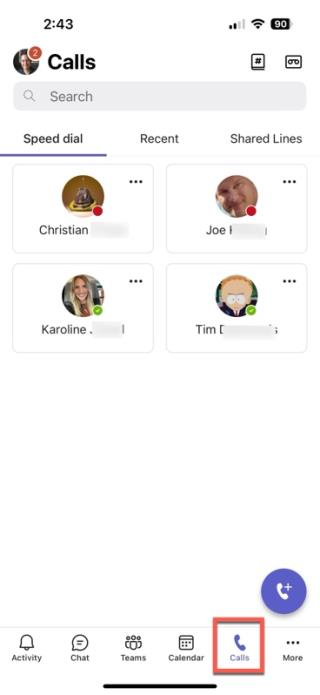
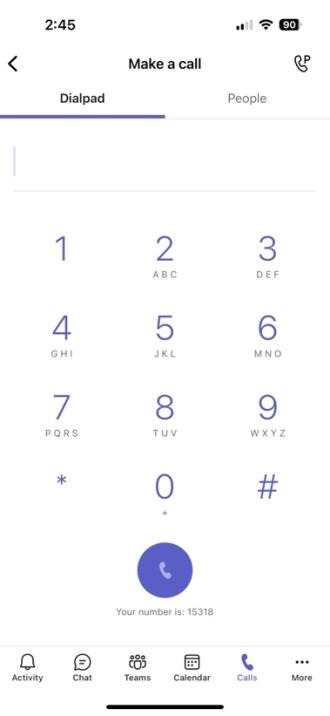
- Select the Calls icon in the bottom menu, then the dial icon.
- Enter the 10-digit number, or search contacts via the People tab.
- Tap the call icon to place the call.
Receive a call
You'll get a tone/vibration and a notification with Accept or Decline (decline sends the caller to voicemail).
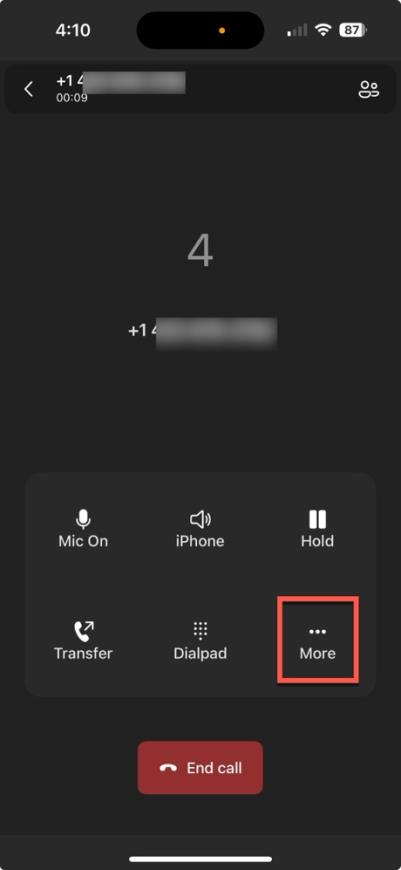
In-call options (mobile)
- Mic On/Off — mute your microphone.
- Hold — place the caller on hold.
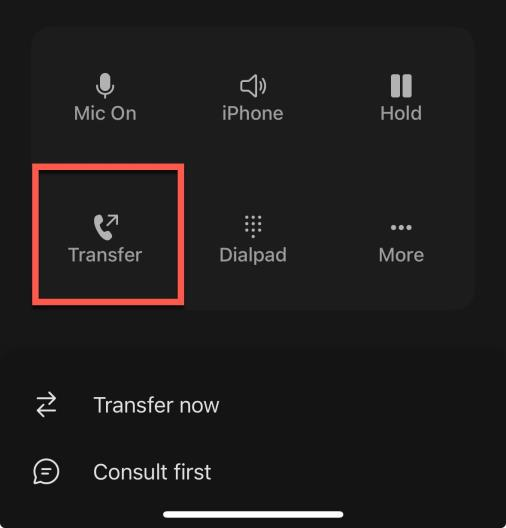
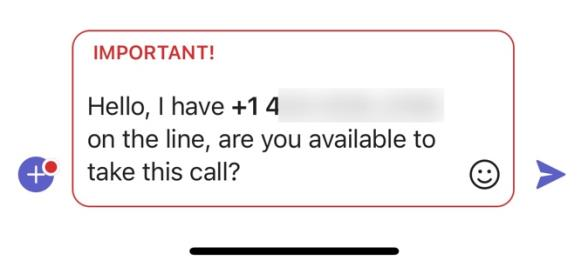
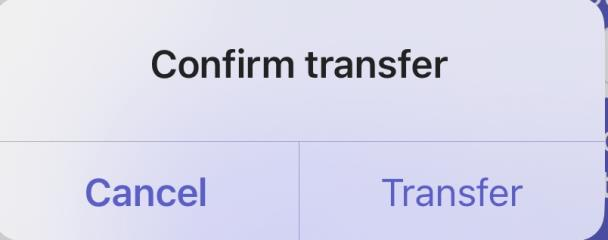
- Transfer — Transfer now (cold: instantly transfers, then End Call) or Consult then transfer (warm: call or chat with the recipient first, then confirm the transfer).
- Dialpad — opens the dial pad.
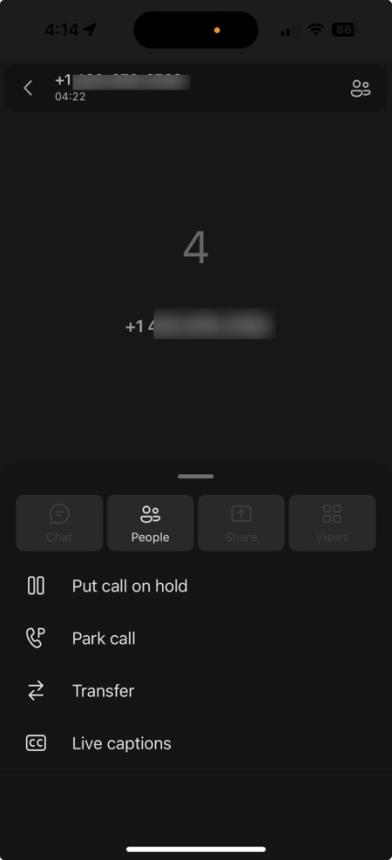
- More — hold, park a call (Teams provides a park code; retrieve via the dial pad by entering the code and Pick up), and Live Captions.
ℹ Note: Live Captions text is not retrievable in PrimeCall afterwards.
Related: Web Phone · Mobile App
↑ Back to top